Lumos Dual Laser Engraver from Wecreat: A Sort Of Review. Kinda.

Okay so this is like the third time I’ve started to write this review and each time I ended up with something I found entirely unsatisfactory so I’m going to start this all over again and keep going until I finish this sucker.

I’ve been having problems with this review not because of the Lumos itself, but because I don’t want this to be associated in any way, shape or form with the dozens and dozens of fake crap “reviews” I’ve seen for the Lumos since it was released a few months ago. I’ve sat through way too many of those so-called “reviews” and they are almost universally utterly horrible and completely and totally useless. I’m tempted to go off on a rant about these and maybe I will at the end of this or in a separate article. But I’m not going to waste your time with that now. You’re here to hopefully learn something useful about this thing.

I’m not going to do a typical review. I’m not going to repeat readily obtainable information about this thing. If you want to learn statistics and hear people gushing about how wonderful it is and all that just go look at the dozens of reviews on Youtube and elsewhere. Me? I’m going to talk about what it’s like actually using this thing in actual real world conditions.

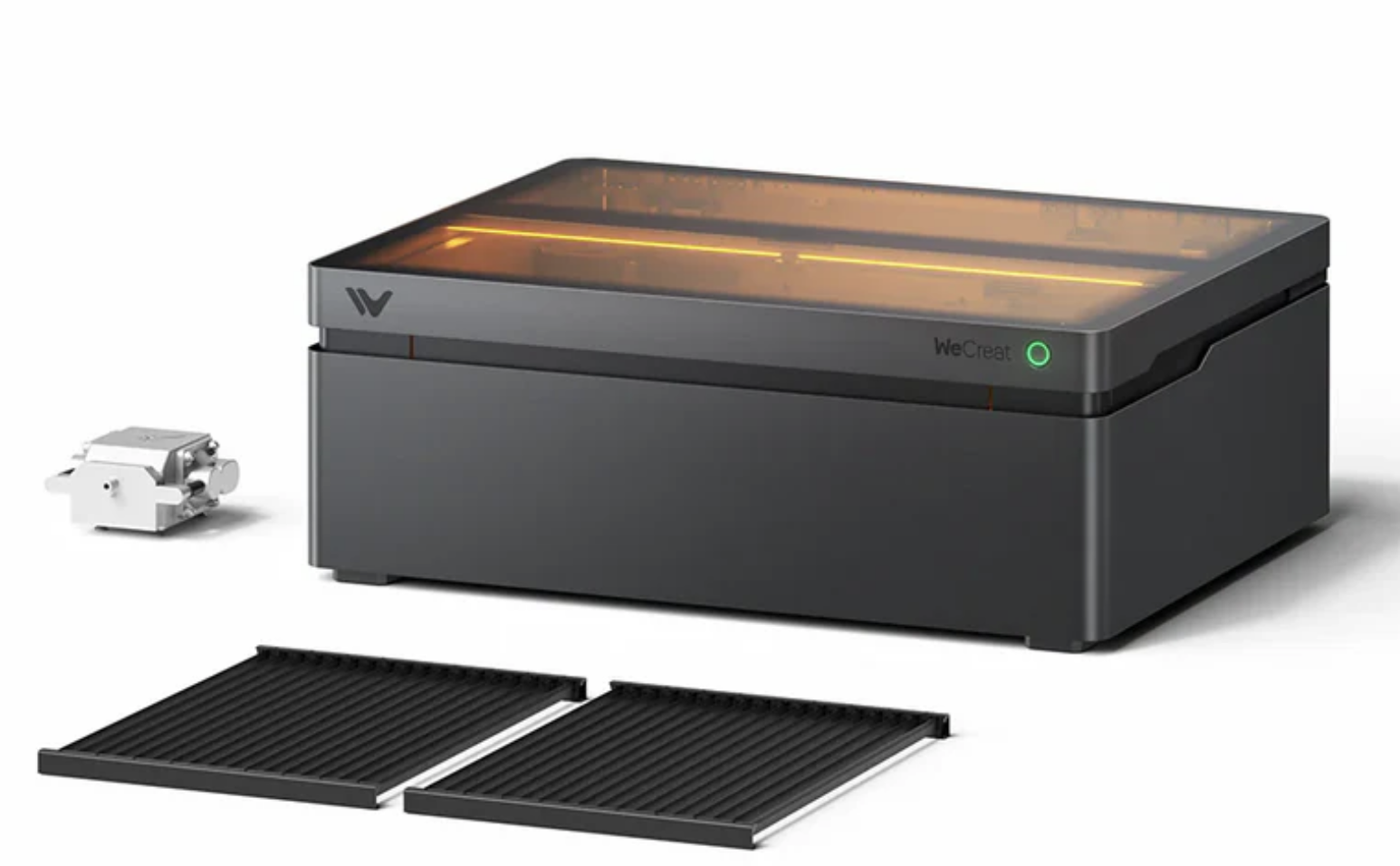
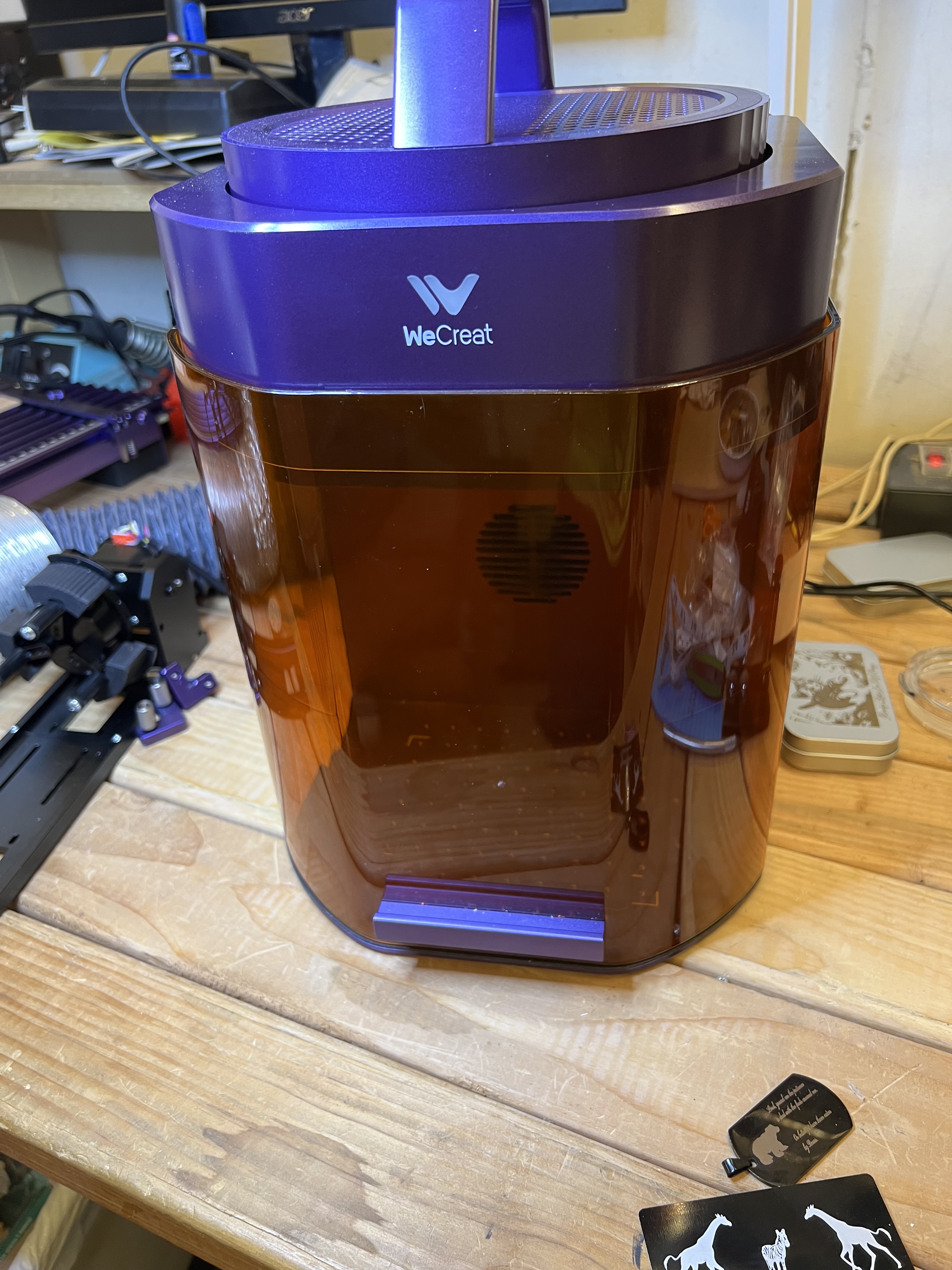
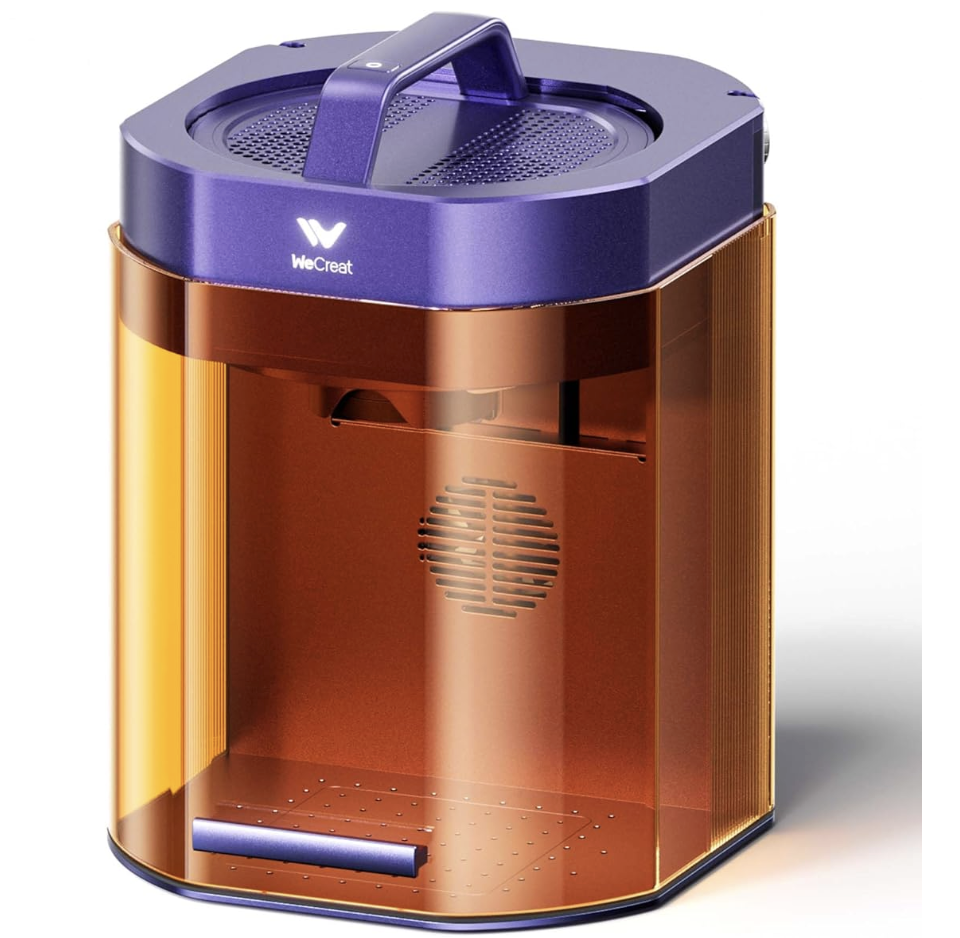
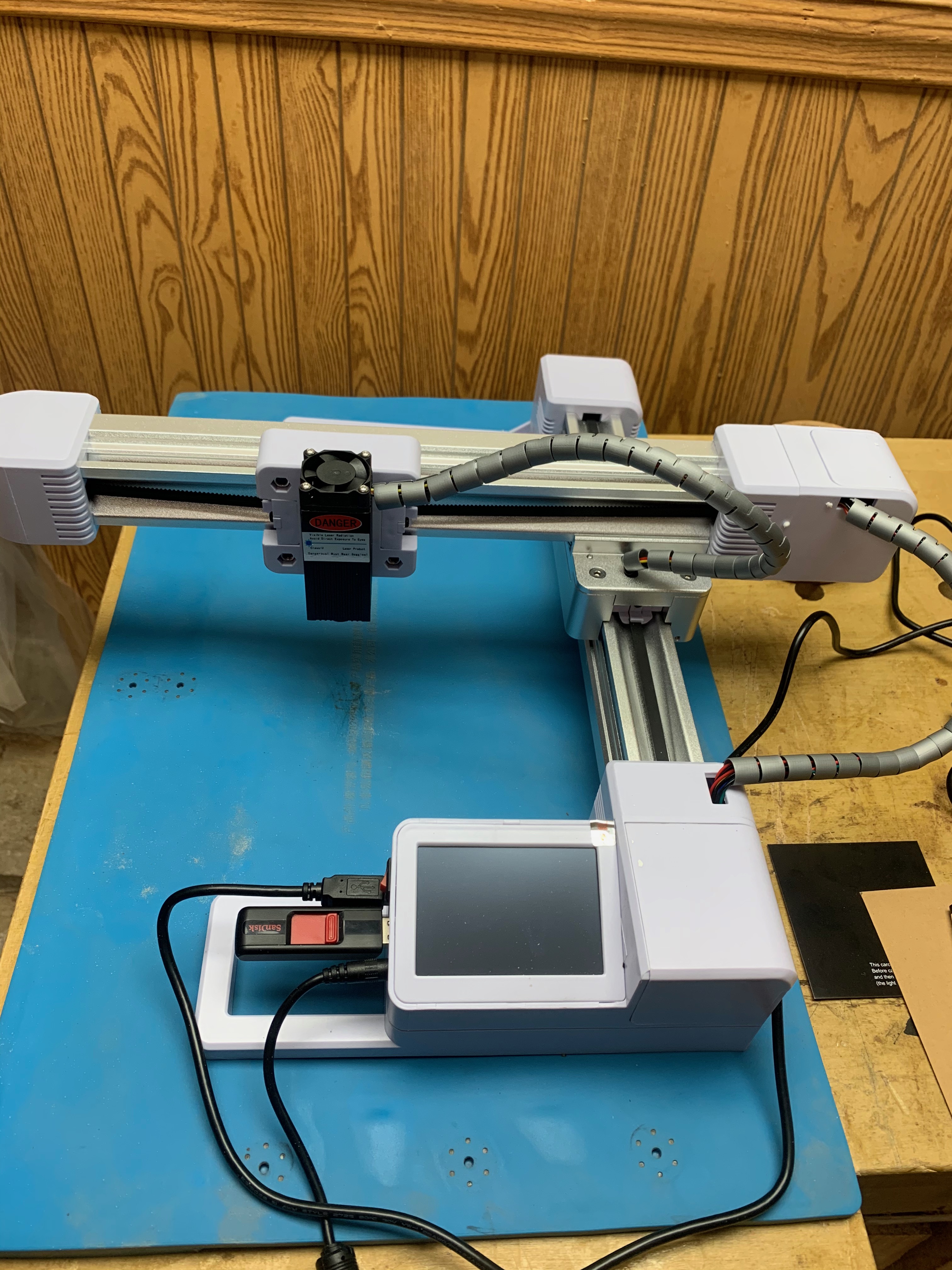
So this is it down below. the Lumos from Wecreat (yes, that’s how they spell it) in all of its purple and orange glory. And for those of you who might be interested in actually buying one of these puppies, it sells for $1,200 or so. Ah, strike that. Looks like it’s down to $1,000 as of Nov. 12. That’s without accessories like the sliding table and the rotary tool which are extra cost options.

What makes this unit interesting is that it has two different lasers built into it. There is a more or less normal 10W blue diode laser for working with materials like wood, paper, some plastics, etc. But there is also a 3W infrared laser that lets it actually engrave metal. That’s the real reason I was interested in this purple beastie. I wanted to be able to engrave metal. And at the time I bought it, it was the only one on the market that had all of these features. X-Tool and a couple of others have brought out units that are comparable to this one now, though, so if you’re in the market for one of these do some shopping around.

Personally I think it’s a good looking little unit. Certainly the build quality and fit and finish seem to be excellent. The only visible plastic bit is the orange shield in the front. Everything else is solid, sturdy aluminium. The laser head is the circular unit with the handle attached at the top. It is packed separately and must be attached to the base unit but that takes only one bolt to accomplish and takes all of about 2 minutes. That’s the only assembly that is required. Basically you can put this thing together, plug in the power and USB cables, and be ready to go in about 5 minutes. Then just install the software from Wecreat’s website and you’re all set. You could be up and running with this unit in probably fifteen minutes from the time you open up the box and unpack it. This is a far cry from the first laser engraver I bought many years ago that arrived from China as a box of parts, with no instructions.

I won’t keep you in suspense. I’ve been using this thing for over a month now. And I’ve been using it hard. It’s cranked out about 150 challenge coins, several hundred drinks coasters, along with dozens of one-off specialty projects along with just goofing around with it, and it’s never missed a beat. I’m not your typical hobby craftsperson churning out the occasional birthday gift or Christmas ornament. I’ve been using this in a semi-production environment almost since the day I got it. There have been days where it’s been going non-stop for 6+ hours a day sometimes. And it’s worked pretty much exactly as advertised.

Does it have limitations? You bet. Does it have problems? Sure it does. And I’ll get to those. There is no such thing as the “perfect” laser engraver, after all. But this unit does exactly what it’s specified to do and it’s been doing it very well indeed.

First a bit of background. This is what is known as a galvo laser, and by its very nature that means it has both some very significant advantages as well as some equally significant limitations when it comes to functionality when compared to a gantry style laser like my Falcon.

The biggest advantage is speed. Galvo lasers are very, very fast when compared to gantry style lasers. Gantry lasers have the laser source itself mounted on a movable framework that is physically moved over the surface of the work material by belts, pulleys, stepper motors, etc. All of those mechanical gubbins having to move around seriously restricts the speed at which it can work.

Galvo lasers have a fixed laser source. It never moves. Instead there are tiny mirrors in the head that are moved to direct the path of the laser beam itself. Because the mirrors are very small and very low mass, they can be moved much, much faster. And that translates into getting projects done and out the door much, much faster as well. As anyone in business can tell you, time is money.

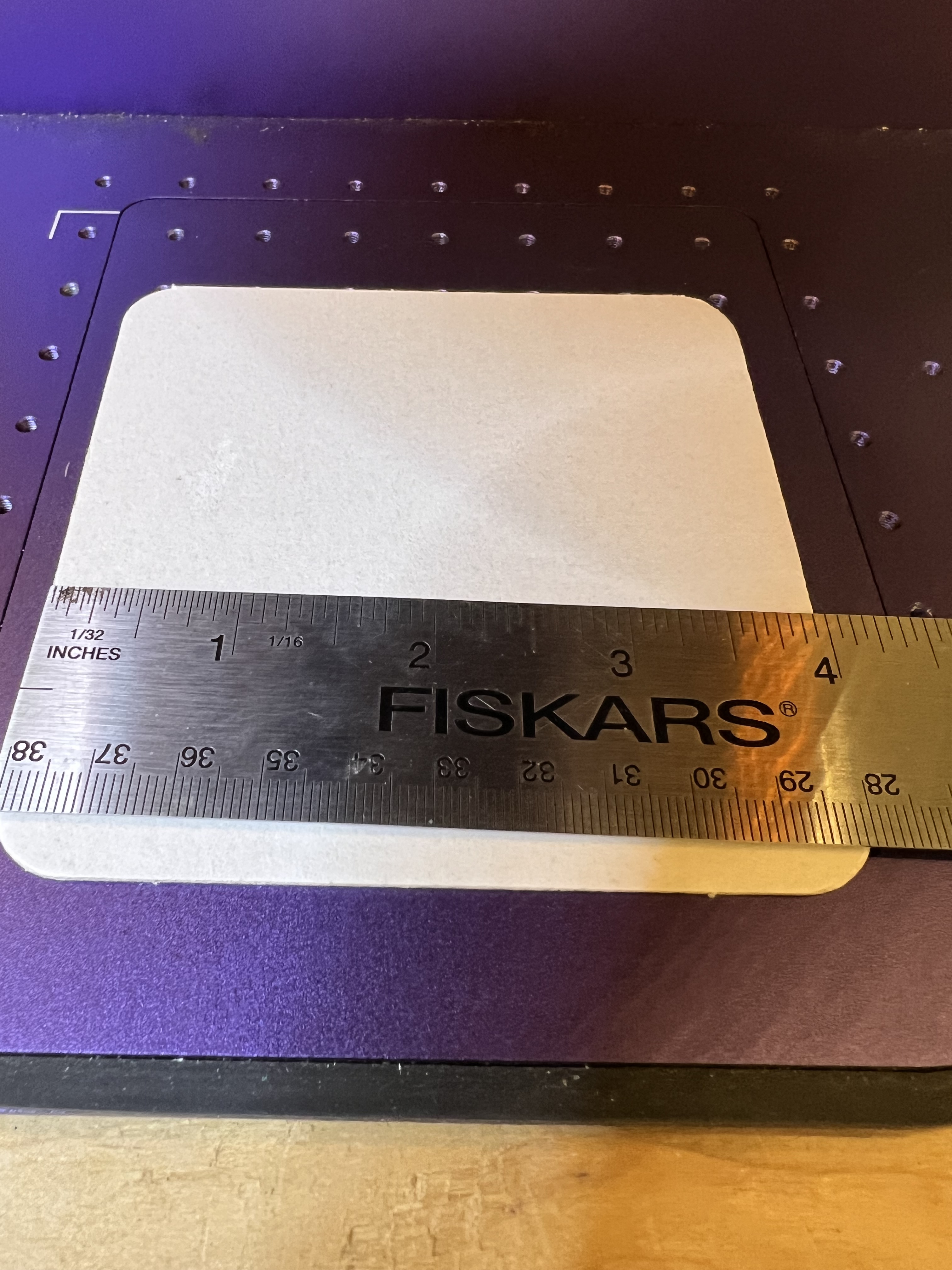
But that’s also the biggest problem with galvo lasers because that severely restricts the size of its working area. Where my Falcon has a working area of about 13 inches X 15 inches. the Lumos has a working area of only around 115 millimeters square, or about 4 inches.

The working area of the Lumos is only about 120mm x 120mm or around 4.5 or so inches square.

Now this isn’t as much of a problem as you might think. The vast majority of engraving jobs I do will fit quite comfortably into that working area. If I need to do something a lot bigger I can either use the sliding table, which expands the working area to around 120X420mm, or if I need to do something bigger still I can use the Falcon.

Speed is where this thing really shines. Let me show you with a short video if I can figure out how this upload thingie works…

Egads, it worked!

Now that engraving on a metal business card took about 30 seconds, all together. The exact same engraving using the Falcon took a good 3 minutes.

Since the video thingie seems to be working let me stick another one in here just for the heck of it. This one takes a little longer because it’s a more complex design but what the heck

I should perhaps point out that these videos are real time, not sped up. It’s really that fast.

(FYI: Those are black anodized aluminum business cards. They’re fun to mess with and they’re super cheap. I get 100 for about $9 on Amazon so I use them for experimenting and just messing around.)

This one above shows the infrared laser in action. Instead of just burning the black coating off the metal card it’s actually etching that design into the metal itself. It’s a bit hard to tell what it is because the video is shot through the shielding but that’s a cat watching Santa’s sleigh flying across the face of a full moon.

It’s that IR laser that made the Lumos interesting to me. That and its very high resolution. It’s the only laser in this price range that I know of that has dual laser sources built into it; a more or less standard 10W blue laser and a 3w IR laser. The standard laser works with the usual materials like wood, plastic, leather, etc. The IR laser has the ability to engrave metal.

If you saw the review I did of my Falcon laser you may remember that I used it to work with metal also. But that was different. The Falcon cannot actually engrave any kind of metal no matter what the hyped up advertising might make you think. It can discolor metal but it cannot actually engrave it. It can also be used for a kind of powder coating. A special material is applied to the metal and the laser’s heat causes the material to chemically bond with the metal to give a very durable result. But that’s not engraving as such. Engraving involves the actual removal of material from the surface of the metal.

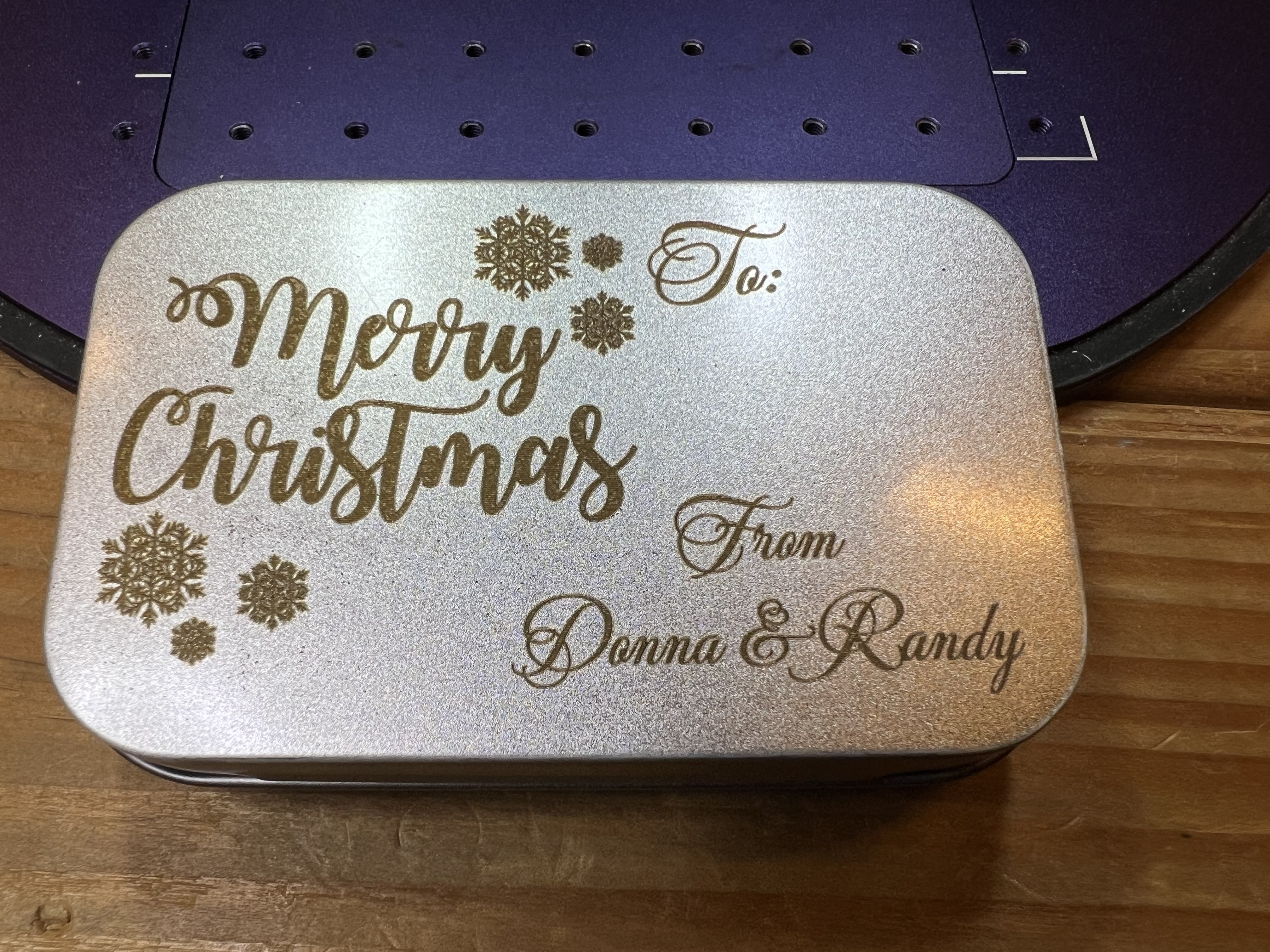
I did about a dozen of these little metal Christmas gift boxes with various designs and wording. They’re just the right size for gift cards or small trinkets.

If you’re doing this laser engraving thing as a business, here’s a hint. You can pick up these boxes for about $0.50 each in quantity or even less if you shop around, and people will pay actual real money for these things with a nice bit of artwork engraved on ’em. Better still, take the whole show on the road, set up in a booth or table and do custom engraving on the spot for people. Takes only a minute or two to engrave a name or brief message on one of these.

That’s not just discolored metal, that’s actually engraved into the surface of the metal box.

One thing I’ve been doing for years now is I make a whole line of custom drinks coasters for a brewpub in West Allis. One side has pub’s logo, the other has a (hopefully) humorous cartoon or satirical item. Those dopy things have become ridiculously popular and when I send a new batch down there they’re usually gone in a few hours because the customers steal them. Which is just fine with me because the customers hopefully show them to friends and family and helps get the pub’s name out there and attract new customers. So I do stuff like, well, this, for example:

Nope, I don’t read a lot of manga and even if I did I wouldn’t let it influence my drawings. Nope, no sir… Yeah, right…

Yes, it’s an old joke. I used to steal borrow images from late 19th century and early 20th century public domain sources but I’ve been doing that less and less lately and doing my own because it’s hard to find appropriate images from copyright free sources to match a specific joke. They’re fun, easy to do, and the only difficult bit is the amount of time it takes. With the Falcon doing one of these would take 5 minutes or more. I could cut that down quite a bit but only by sacrificing the quality. With the Lumos it takes about 1/3 of the time or even less do do one of these.

I’m afraid that I’ve been picking on West Allis, the suburb of Milwaukee where the tavern is located, of late. I hope the town has a sense of humor because stuff like these pop up…

Yes, I am ashamed of myself. Anyway I’m showing you these because it would have been difficult or even impossible to do this with the Falcon. At least in any kind of reasonable amount of time. As nice as the Falcon is, it just isn’t fast enough, nor does it have high enough resolution to be able to do a decent job reproducing photos like these up there. Just for the heck of it I did the “vegetable queen” one on both the Falcon and the Lumos. On the Lumos it took about 3 minutes. On the Falcon? It took 10+ minutes. See why I’ve been using the Lumos so much since I got it?

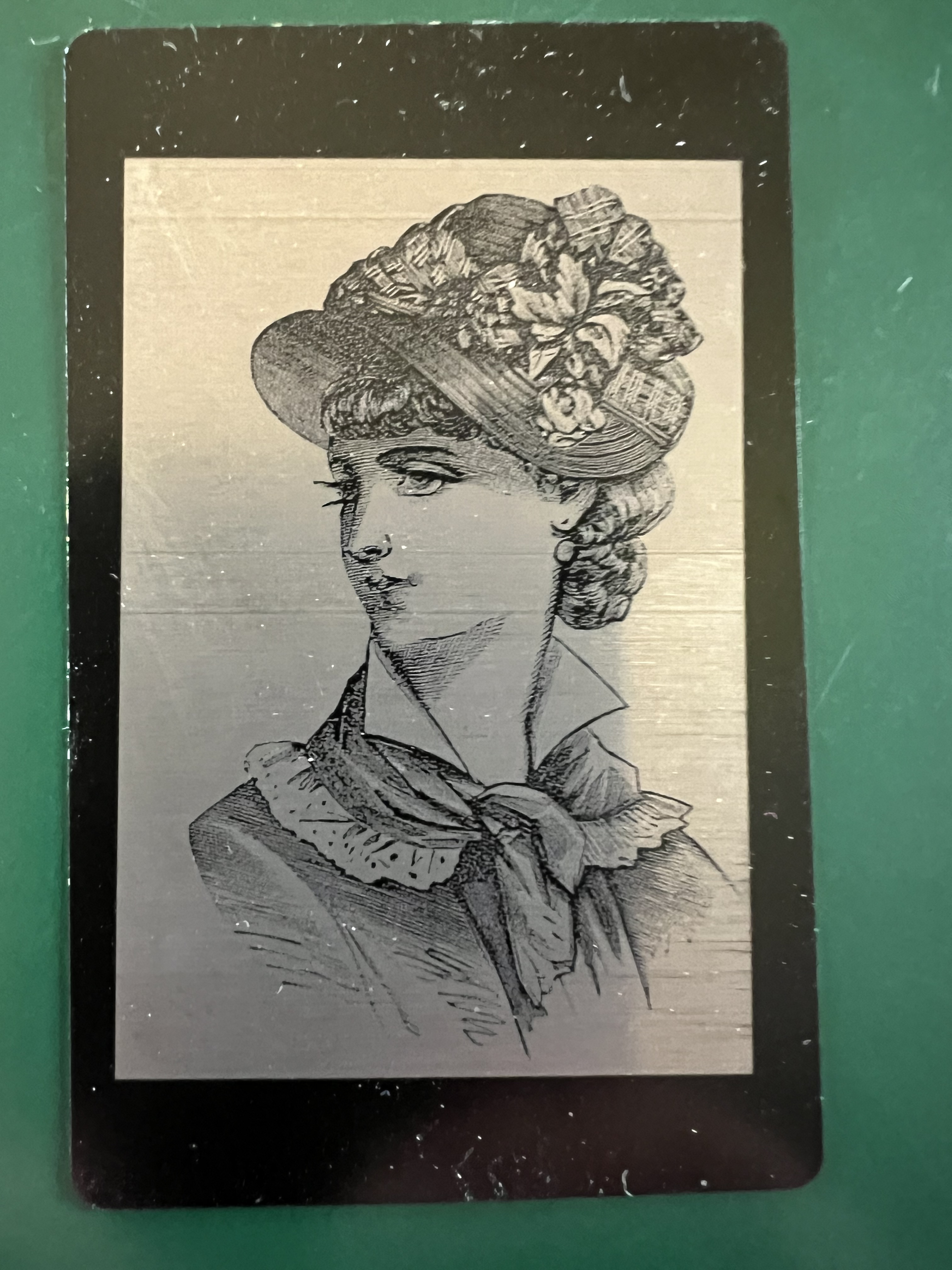
The resolution of this laser is extremely impressive. Look at this test image I did on one of those black anodized business cards.

There’s no way the Falcon could achieve that high of a resolution. The width of its laser is just too wide.

Doing photos with this thing is a blast. It gives near photographic quality results on almost everything I’ve tried it with. Over there on the left is a photo of one of my cats that I took. I cut out the background and imported it into the Wecreat software. I found a bit of scrap cork laying around and lasered it onto that with the diode laser and you can see the results for yourself. The resolution of this thing, both the diode and the IR laser, continues to impress me.

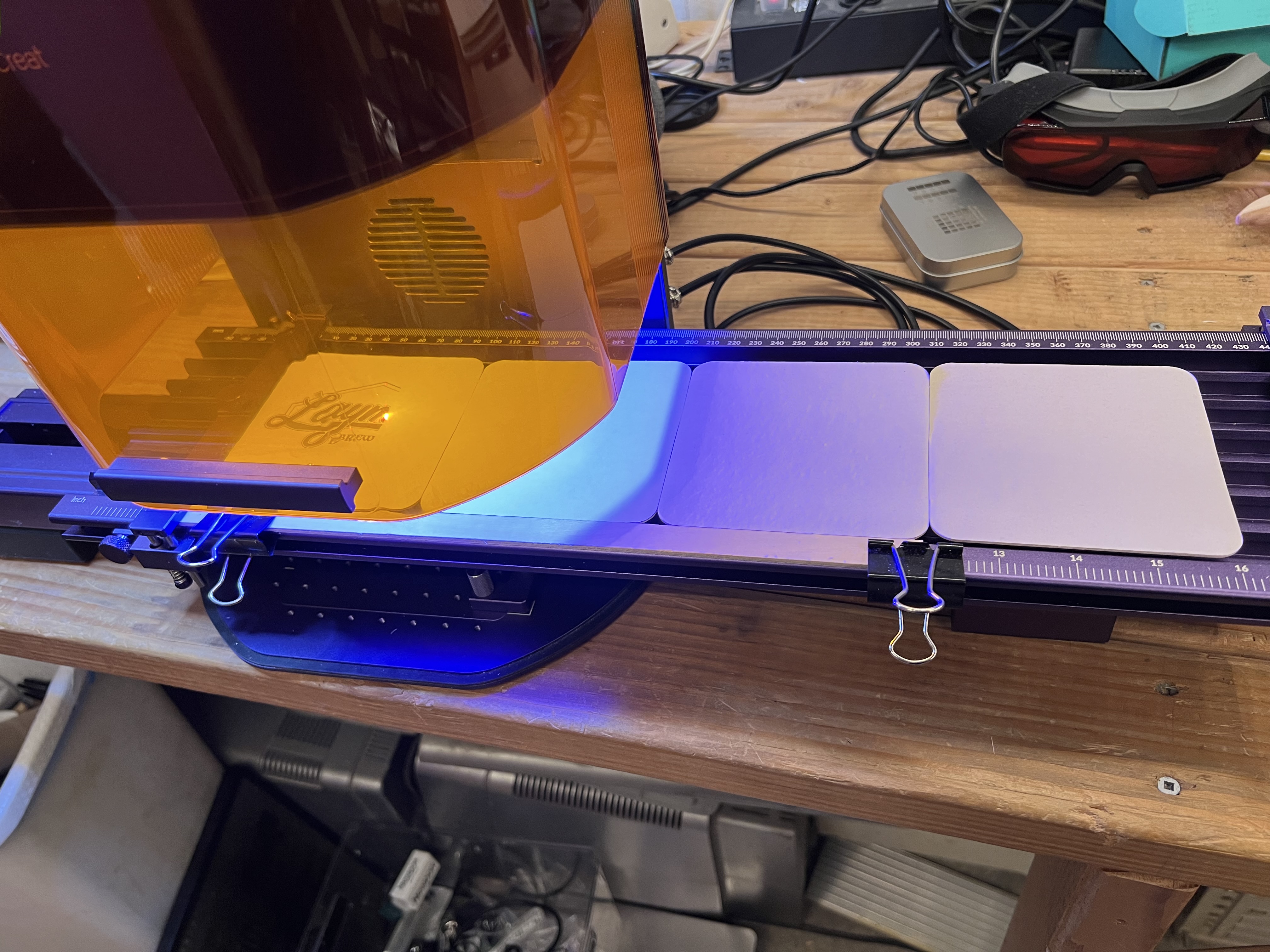
Let’s look briefly at the sliding table. I use the optional sliding table for batch runs all the time. Below it’s set up for doing 4 coasters at a time.

I put 4 blank coasters on the table, start it up and it merrily chugs along for about 10 – 15 minutes doing all 4 of them. Then I reload more blanks into it and start it all over again. While it’s chugging along doing the batch I’m usually working on artwork for the next batch of coasters or some other project.

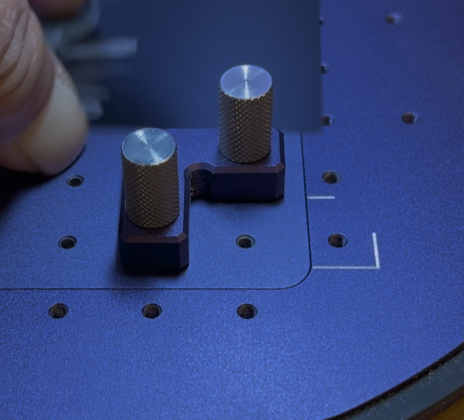
Installing it is about as simple as it gets. Over there on the left you see one of 2 “L” brackets that are included with the laser that screw down into the holes you see on the baseplate. Not only do they serve as makeshift guides to help place material on the bed, they are also used to anchor down the sliding table. The two brackets are screwed down to fit in the white painted line shown in the lower right corner, and in a second one in the upper left corner on the base. Then the sliding table has corresponding holes in its base. Just fit it down over the top of those knurled knobs, plug two cables into the back of the Lumos itself, and it’s ready to go. Takes all of two minutes to install it or remove it as needed.

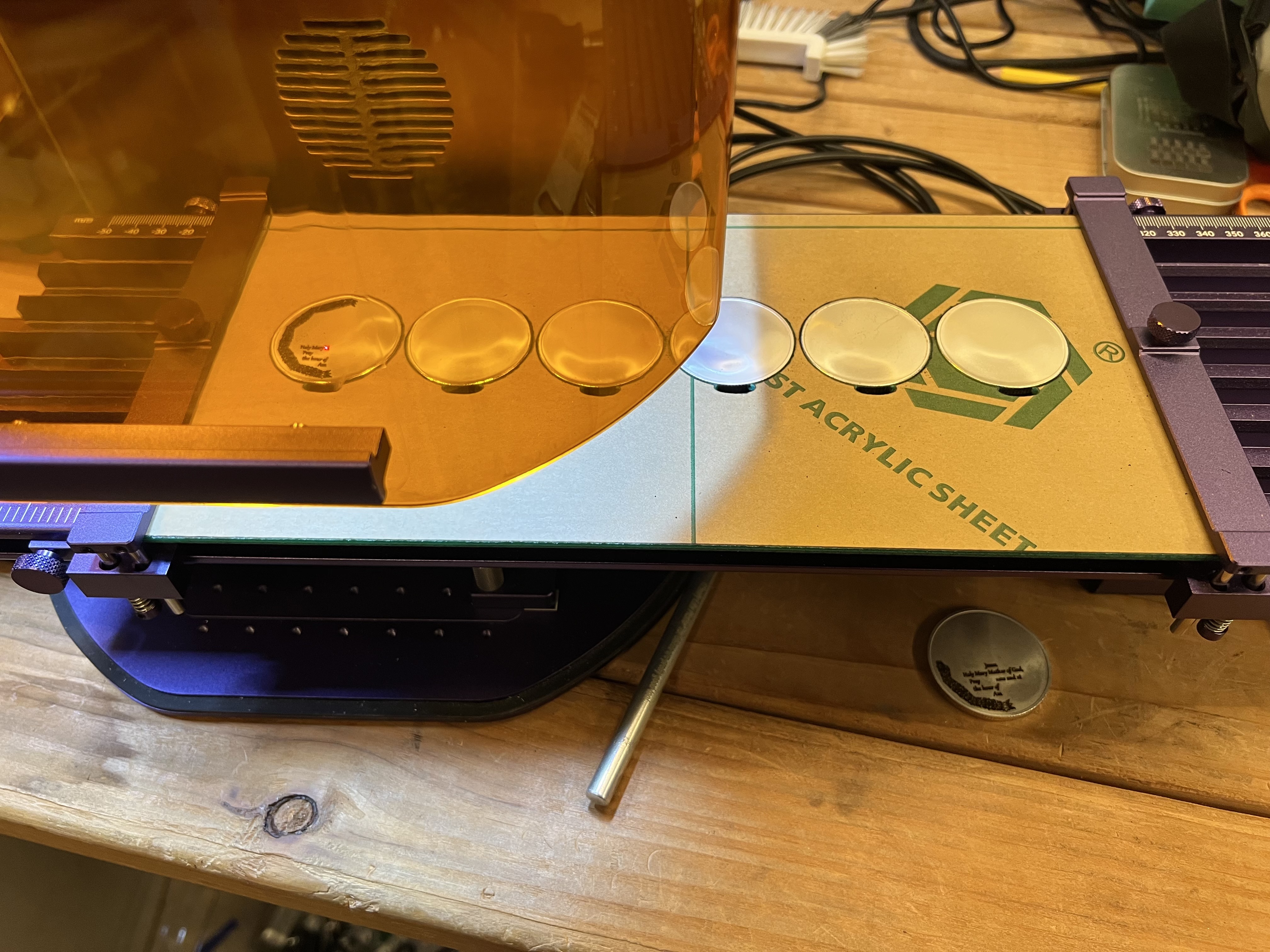
I also use the sliding table with jigs I make myself (usually cutting them out of acrylic plastic or plywood on the Falcon) to hold small objects. or with guides clamped down to the edge of the table that I use for coasters. Below is a jig I cut from acrylic on the Falcon to do challenge coins 6 at a time.

I load 6 coins at a time into the jig, load the appropriate file and start it going. Engraving coins takes a long time though. Depending on how intricate the design is and how deep the engraving needs to be it can take well over an hour to do one side of all six coins. But since I’m working with non-flamable material I can just let it go while I do something else and I don’t need to actually be there the whole time.

The other optional tool you can get for this thing is the rotary tool and I have that too although I’ve only used it a couple of times.

Engraving things like cups, glasses, water bottles, etc. isn’t something I really do but I wanted to do a few items just to make sure it actually worked as advertised.

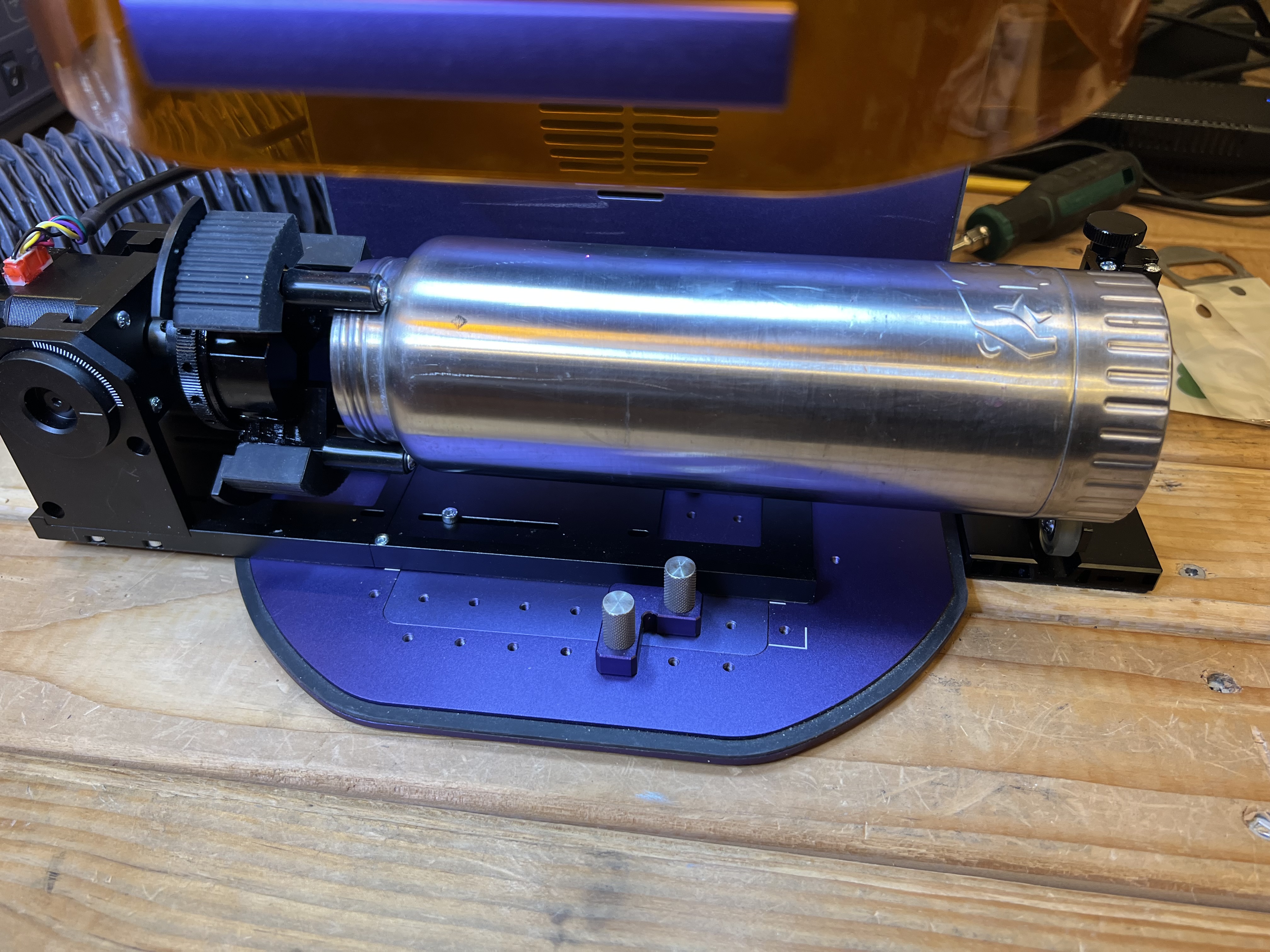
Unfortunately, unlike the sliding table which is extremely easy to install and use, the rotary is a pain in the neck. It has to be physically bolted to the base of the Lumos with 3 very small screws which you will immediately lose. I did. Fortunately there were extras included.

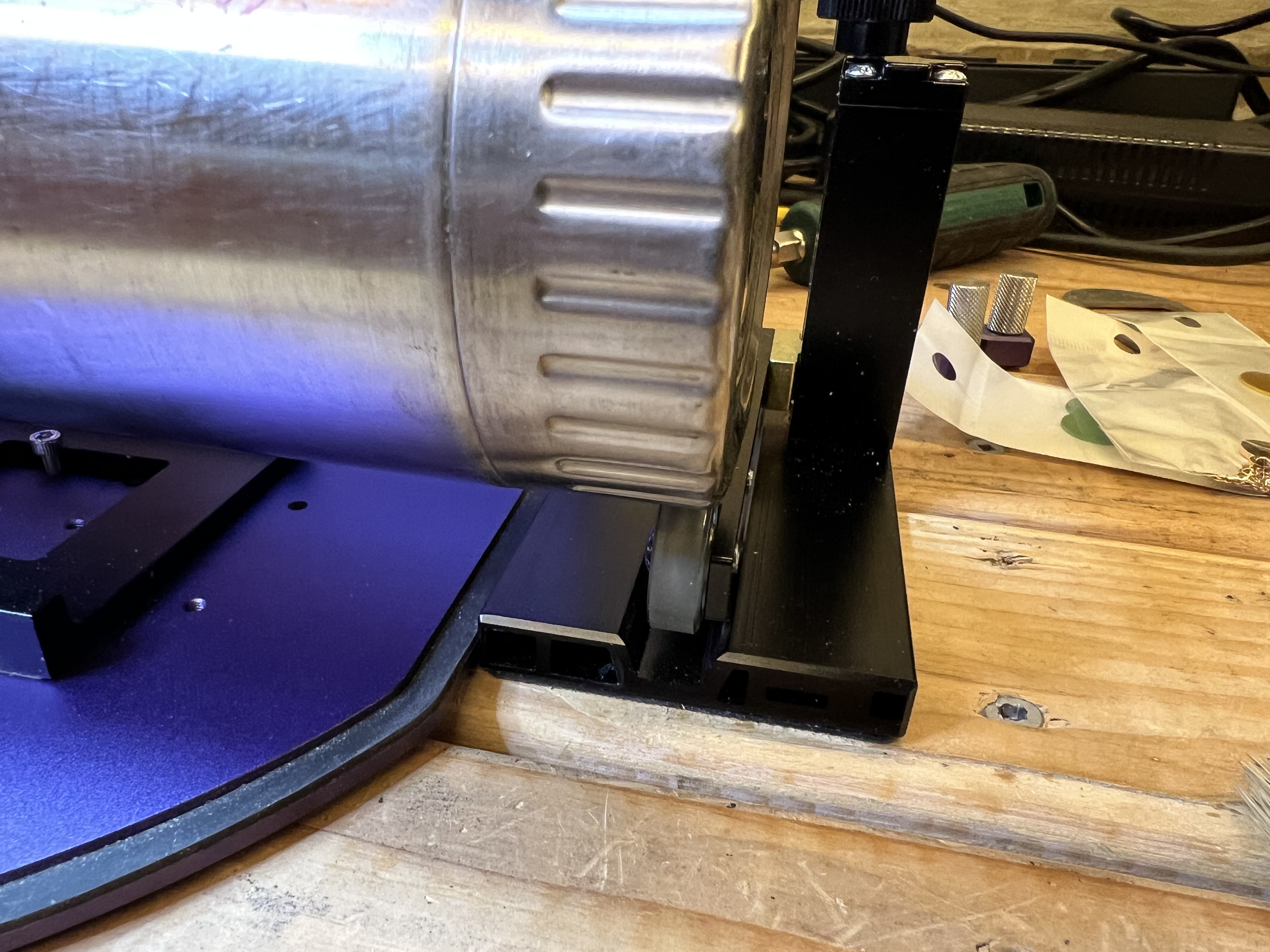
It does work well, however. I tried it just this afternoon using the old stainless steel water bottle I carry on the bike. The kit with the rotary tool includes a height adjustable rest with rollers to support the end of whatever it is you’re trying to laser which was absolutely necessary or the bottle slipped enough in the jaws of the tool to get out of position.

The blotch over the “u” in grouchy is from a defect in the surface of the bottle, not from some kind of glitch from the Lumos.

Once I had it set up it worked quite well. I had no issues with it. Basically it works just like any other rotary tool so if you’ve used one before with a different laser using this one isn’t going to be a big deal.

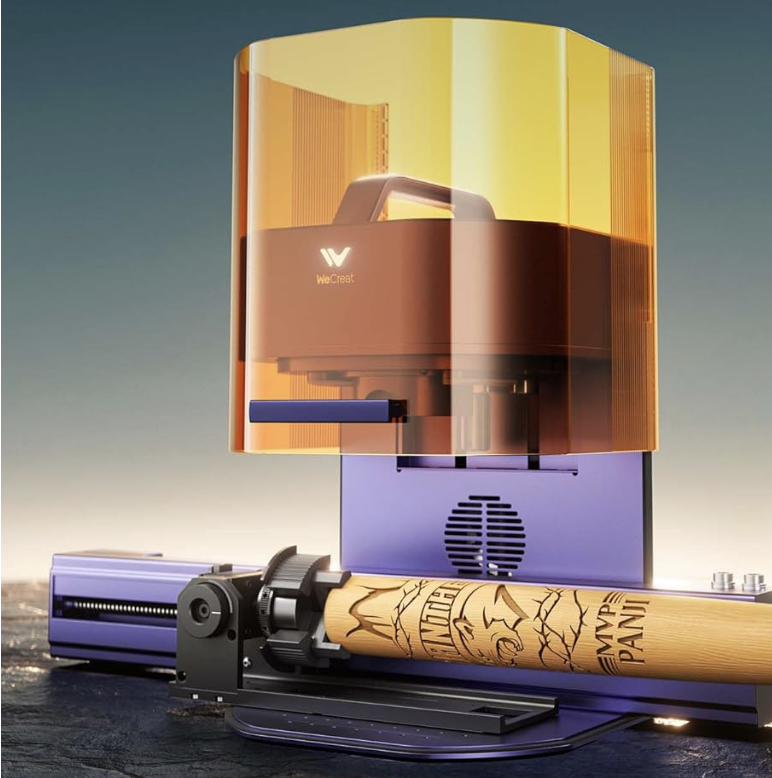
One thing you are supposed to be able to do is take the top off the sliding table, attach the rotary tool to it somehow, and then then clamp that whole conglomeration to the base of the Lumos and use it to making engravings up to 0ver 400mm long on lengthy round objects, with the rotary tool rotating as needed. and the sliding table moving the whole thing left to right as necessary. One of the advertising videos Wecreat has shows them engraving almost the entire length of the barrel of a baseball bat.

Now that’s a neat trick but me, being the 3rd laziest person in the state… Well I couldn’t work up enough ambition to go through all of the work of half dismantling the sliding table, attaching the rotary to it and then trying to test all of that. I’ll just take their word for it that it works and be done with it.

Overall the Lumos has been excellent. It does exactly what it’s advertised to do and it does it pretty darn well. I’m very pleased with it so far.

I want to talk specifically about metal engraving for a few minutes too. I’ve been using laser engravers for years, but I’ve only had diode lasers that couldn’t engrave metal before, so this was something entirely new to me.

Something like that metal box up there that I pictured doesn’t take very long, a few minutes at most. But if you want to do highly detailed, relatively deep engravings for an object that will have to endure a great deal of handling and wear, it is going to take a long, long time. Let me show you what I mean. Here’s a 30 second clip of it engraving a coin:

See what I mean? When I was doing those coins I’d load up 6 of them in the jig, start it going and then go do something else for an hour and a half or so. All those videos you see on Youtube of people doing deep, intricate engravings in just a few seconds? Sorry, just isn’t happening. Those videos are speeded up enormously. Until you get into lasers in the $4.000+ range you can plan on waiting a long, long time to do a deeply engraved, intricate design on something like a coin.

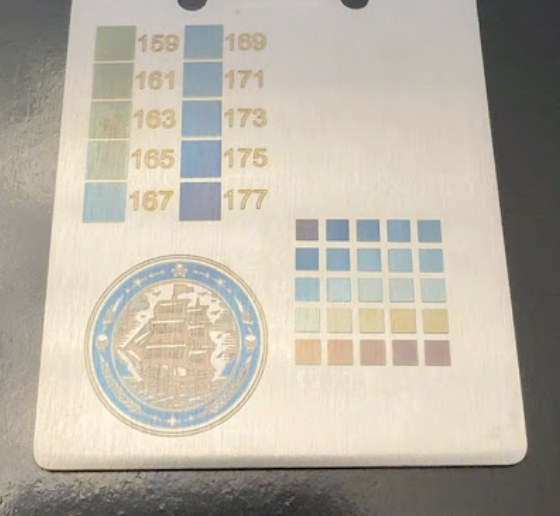
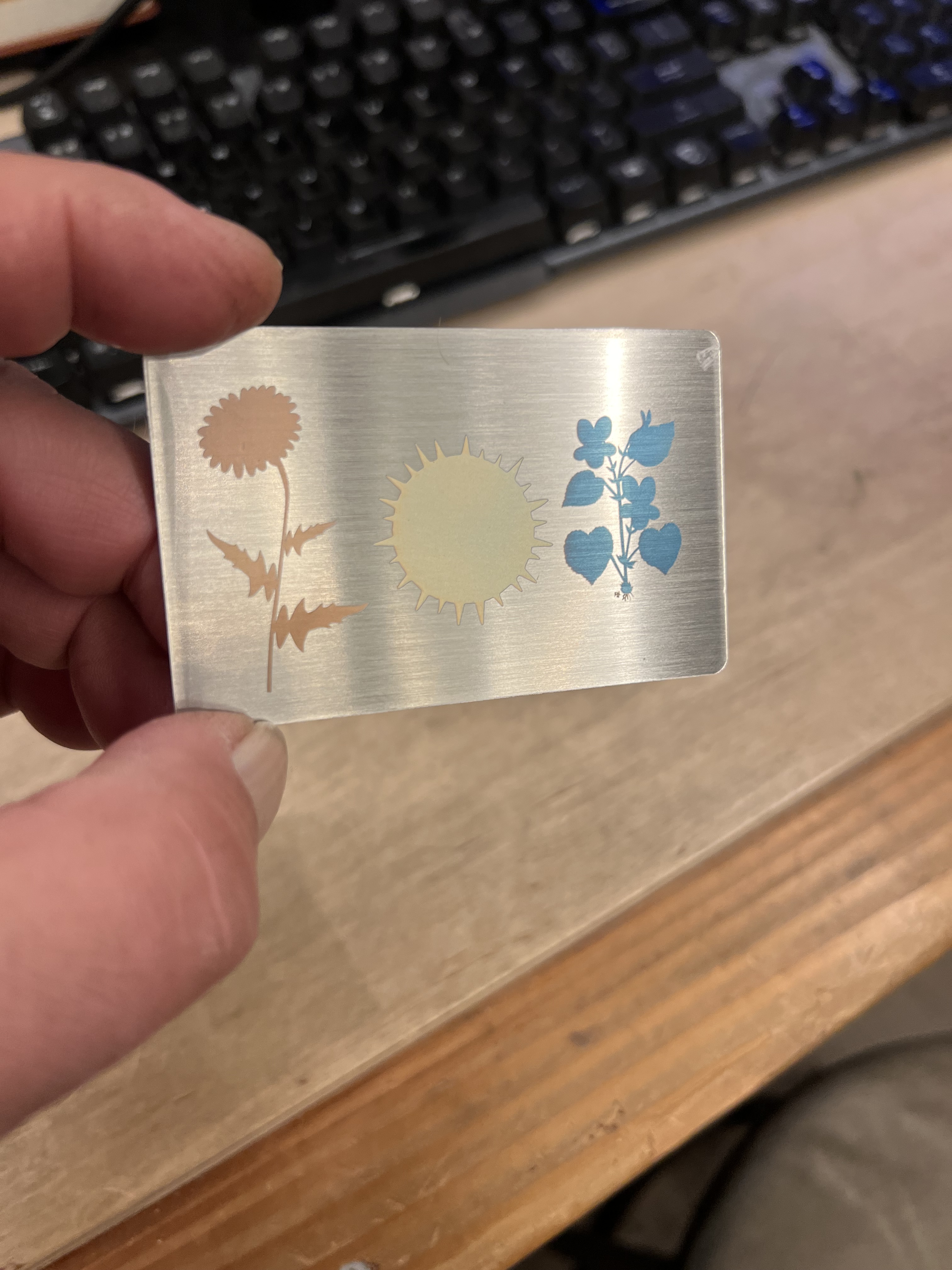
The other thing I want to talk about is that there has been a huge amount of hype with the Lumos and other IR laser engravers about being able to do color engravings on metal, usually showing you pictures like the one over there on the left. If you follow some of the “reviewers” and “creators” or whatever on Youtube, you’ve been led to believe it’s that it is wildly popular with customers, and that it is easy to do stuff like this. It isn’t. IMO it is mostly an interesting gimmick and I had a hell of a time trying to get it to work consistently.

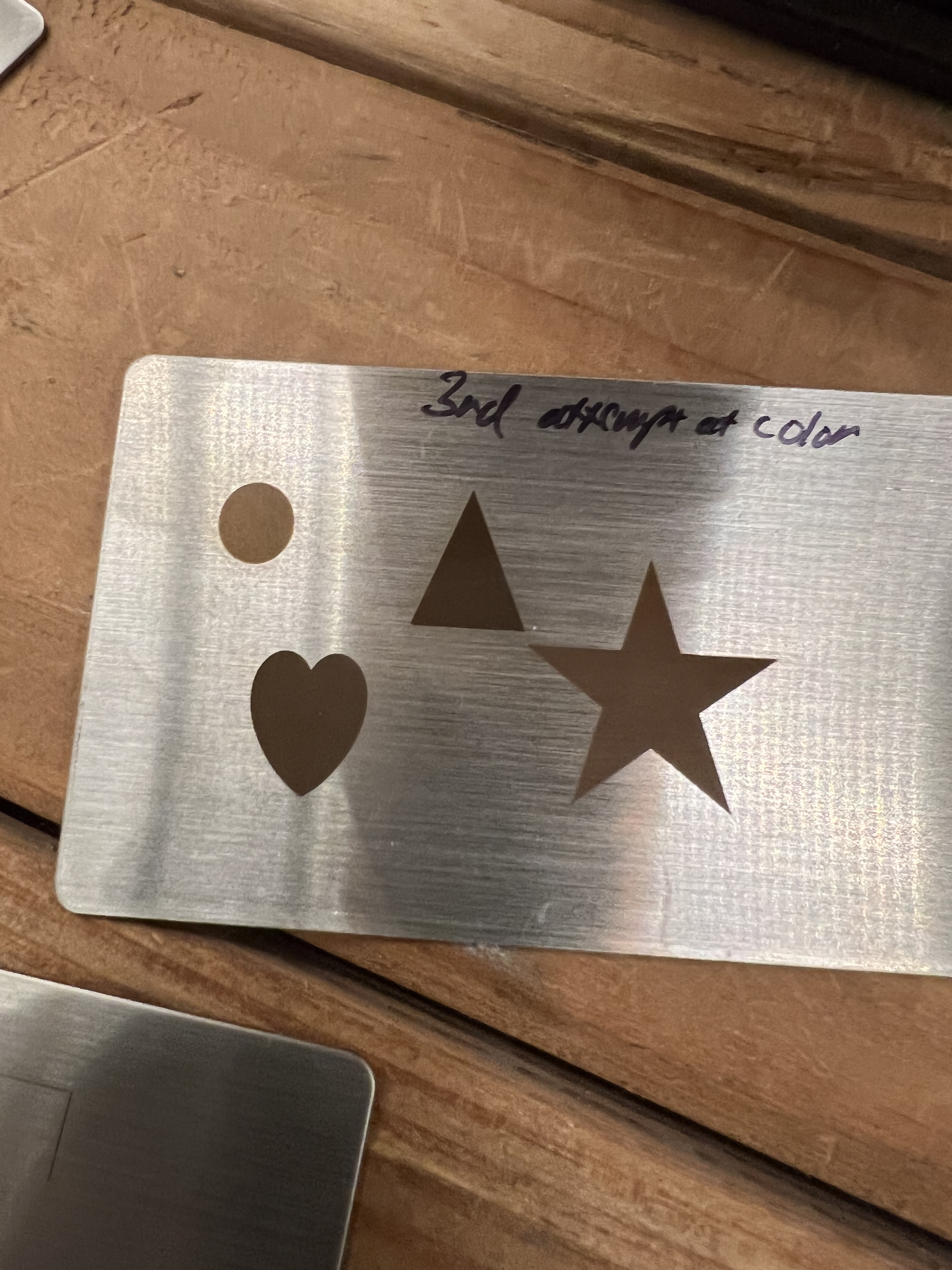
I have gotten this to work and one of my successful experiments is up above. But I burned through a dozen or more of those stainless steel cards before I got results like that. And even that simple design took something like 20 minutes to crank out. More often than not, my attempts to get color turned out looking more like the image over there on the left. Lots of dull browns and grays.

And even more interesting is that these brushed stainless steel cards and a brushed stainless steel bottle opener I had laying around from another job were the only pieces of metal I was able to do this with. Every other attempt using brass, aluminum, copper, and even other pieces of stainless steel were complete failures.

Perhaps I’m doing it wrong, perhaps I don’t really understand how it works well enough to get decent results, but my experiments with getting color have not been encouraging.

And when they have worked the results were never as brilliant as the ones I’ve seen in the ads and reviews, and the process took so long that it wasn’t worth the effort. If you’re doing this as a hobby and aren’t under any kind of time pressure, hey, it’s fun to play with. But if you’re trying to crank out products for sale? The color effects aren’t as brilliant in real life as they appear in the videos. You need to put some kind of clear coat over the top or it will start to fade and even corrode (yes, even stainless steel will corrode over time). And even worse it takes so long to do that I don’t see how this would be cost effective for commercial production.

So let me sum this up. The Lumos is a great little laser. It’s fast, compact, does a nice job. The resolution is excellent. It’s much, much faster than my Falcon. And the price isn’t bad at all. I just saw that it’s down to around $1,000 now, $200 less than mine cost me.

There are definitely disadvantages to lasers of this type, however. There is the small size of the working area, for example. There is the issue of fires to deal with if you’re going to try to cut material with it. I’ll come to that in a minute. When engraving metal it can be very slow. But otherwise I like it a lot and it gets used here constantly.

The Problems

Does it have “issues”, as they say? Definitely.

Let’s talk about fires. Yes, actual, real fire. Whenever you’re using a laser on flammable materials like wood, paper, fiberboard, etc. there is always a danger of fire. This is especially true with galvo style lasers which lack the air assist capabilities that most modern gantry style lasers have.

When trying to cut flammable materials the Lumos can and will start things on fire. It has a built in fire detection system that will shut down the laser, but that’s all it can do, shut off the laser. The burning material will continue to burn until you put it out.

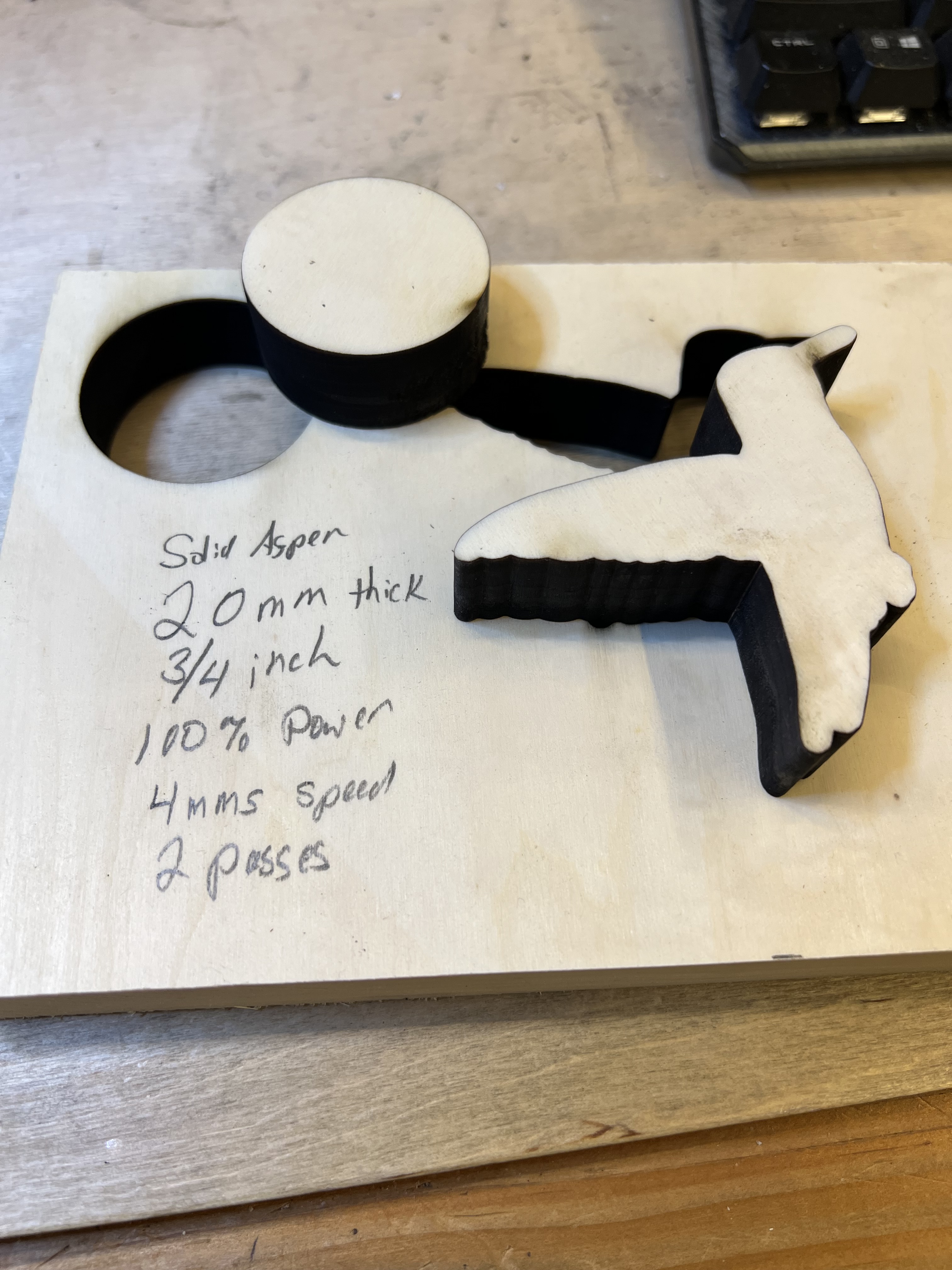
This isn’t the really the fault of the Lumos, it’s just the nature of the beast, as they say. With the Falcon, because it has air assist, I can hit a piece of plywood at full power to cut through it without much risk because the air assist prevents charring and blows out any fires. But that’s not the case with the Lumos. The only way I’ve found to reduce the risk of fire is to use lower power and multiple passes. While it can cut thin wood, etc. this is not the kind of laser you want if you’re going to be cutting a lot of flammable materials.

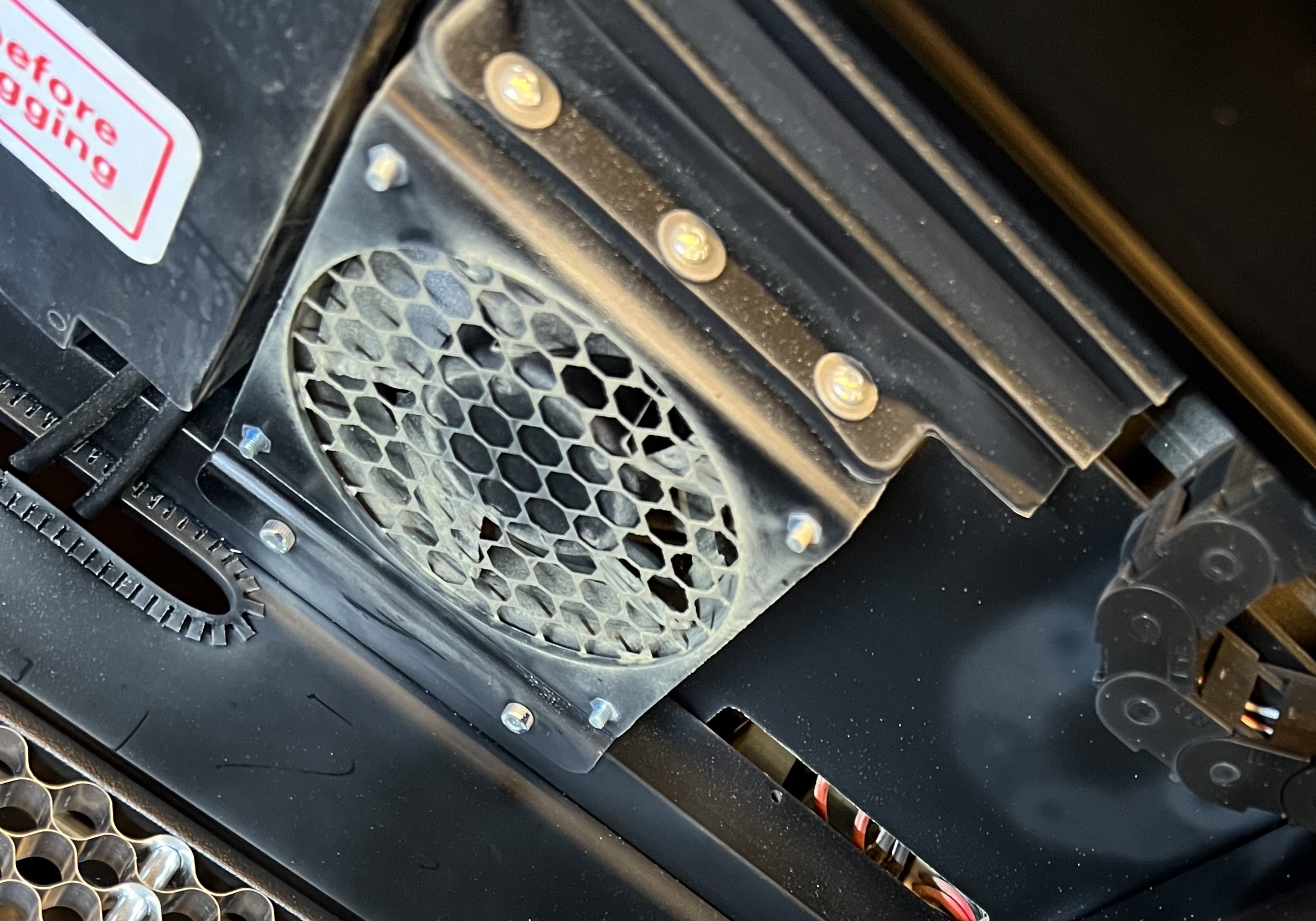
Sidenote: Smoke and fumes are always an issue with lasers. The smoke and fumes generated from using lasers with almost any material is dangerous and can be highly toxic. Plus, of course, it will set off every smoke detector in your house. The Lumos has a very powerful extraction fan that blows into a large flexible pipe that you can either shove out a window or attach to an extraction fan, like I do. Or you can feed it into a filtration system of some sort. But you absolutely have to do something to deal with the fumes. Unlike other lasers I’ve worked with, the extraction fan on the Lumos is powerful enough that it does a reasonably good job even with the cover open.

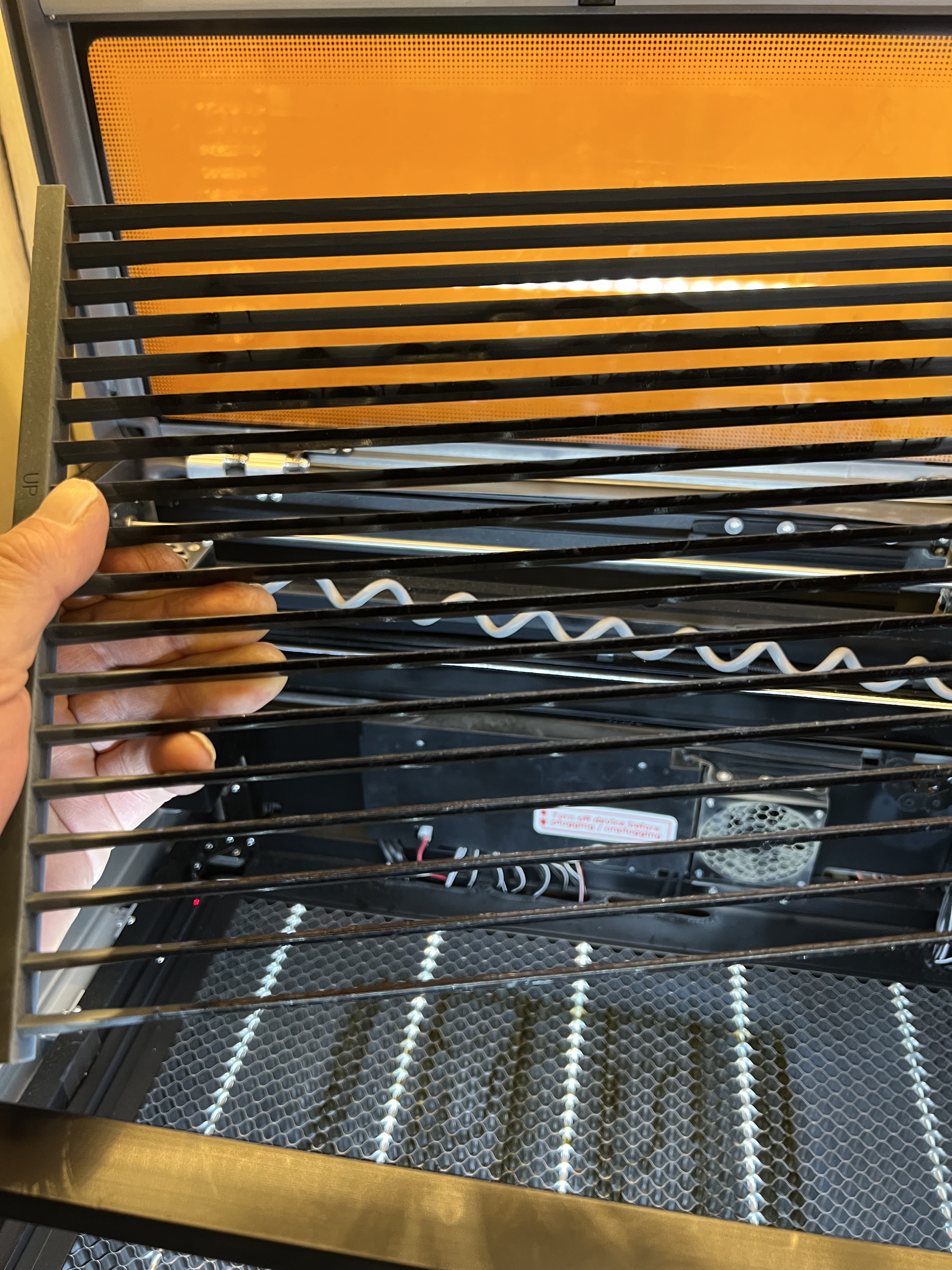
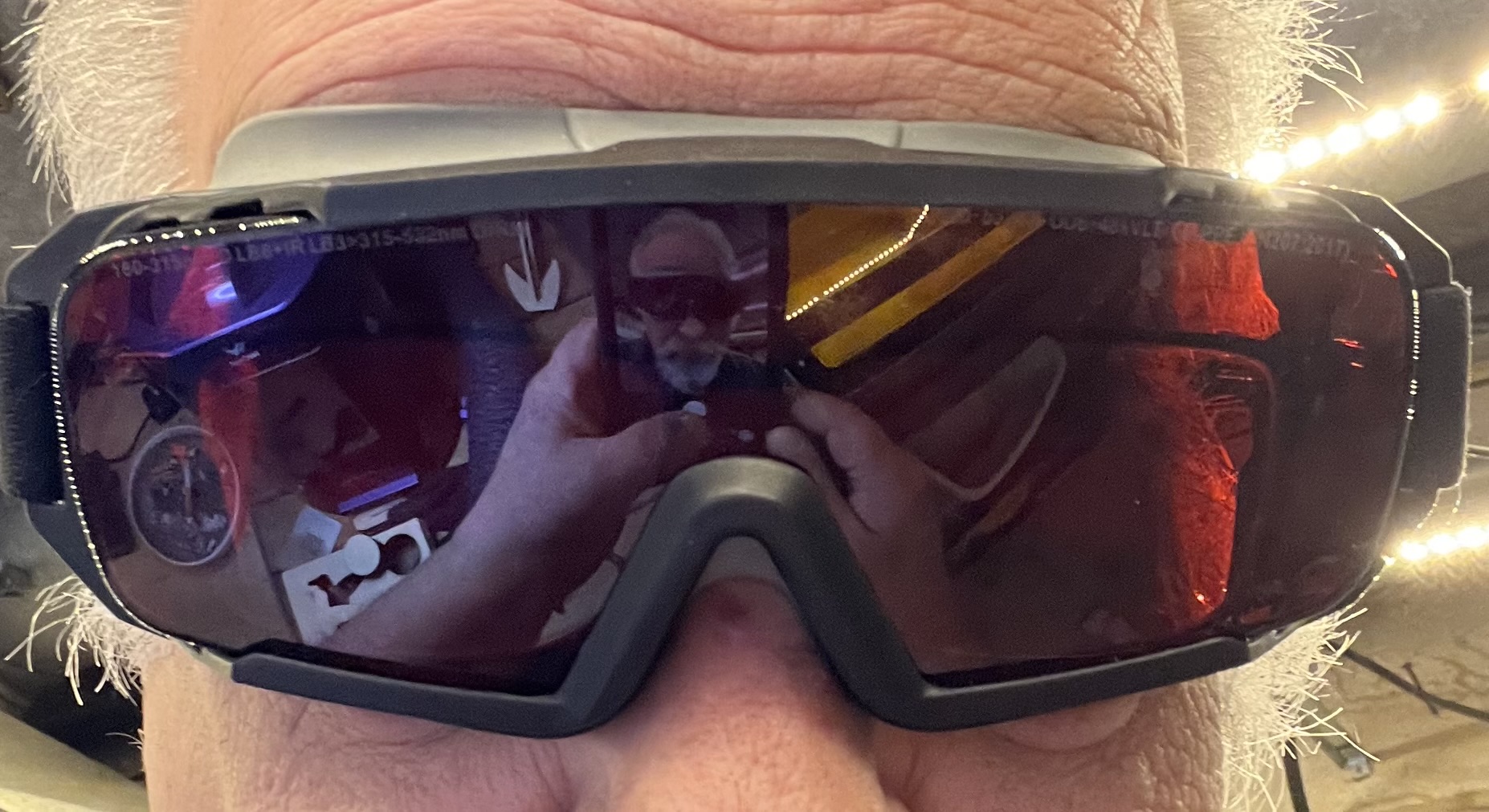
As long as I’m on the subject of safety I need to talk about the dangers of laser light to your eyes. Exposure to laser light or radiation can and will damage your eyes. Most of these modern lasers come with some sort of enclosure that has plastics that block dangerous levels of laser radiation. But in the case of the Lumos it is necessary to operate it with the shield raised up in order to use the sliding table or the rotary tool. So you are absolutely going to need eye protection. And unlike every other laser I’ve bought, the Lumos doesn’t come with any. No glasses, no goggles, nothing.

Unless you already have safety glasses, you’re going to need to go buy some if you’re going to use the Lumos with the shield up.

Other things… As I said before I don’t like how the rotary tool attaches to the frame. It bolts not to the actual frame of the Lumos but to the small removable plate that’s inset into the base. That means the rotary tool can be tippy, which is something you absolutely do not want. It’s also very awkward to try to get those fiddly little screws attached to the base. They really need to come up with a better way of attaching it.

My biggest complaint about the Lumos isn’t the hardware, though, it’s the Wecreat software that comes with it. The software has a lot going for it, especially if you’re a “member” or whatever they call it and the AI functions become active. (I suspect that they’re going to demand I pay some kind of subscription fee once my initial membership expires to keep the AI functions working. At this point I’m not sure if that’s going to be worth the expense or not.)

The AI functions are actually quite good. It can generate complete images based on whatever you type in, and it does a reasonably good job of it. The AI can help to “process” imported photos to help get better results as well.

The software does everything it needs to do, pretty much, but it is unnecessarily awkward to work with. Different functions and settings that should all be gathered into one place are scattered all over in different pop up windows and menus for no rational reason I can come up with.

The font search for the text tool doesn’t seem to work at all. I could type in the exact name of a font exactly as listed in the list, and it couldn’t find it. I’d have to scroll through an apparently endless list of fonts to find the one I wanted.

The materials settings were even more frustrating. You can bring up a list of materials and when selected it’s supposed to change the engraving/cutting settings to the ideal settings for that material. This is a common feature with the software that comes with most of these lasers these days. Only absolutely none of the recommended settings actually worked. None of them. I found myself suspecting they just copy and pasted the settings from a different one of their engravers and never bothered to see if they actually worked.

I ended up wasting a hell of a lot of material just experimenting to try to figure out the ideal settings for the materials I was using. If I went with what the software recommended, I’d get results that were so light they were almost invisible or, even worse, that literally started the material on fire.

Copy/paste of objects between different work spaces doesn’t work at all. Select an object in your currently active work space. Create a new work space and click “paste” and… nothing.

The most irritating thing I found with the software is that it doesn’t let you save your designs in any format other than Wecreat’s own proprietary format. You can work for hours designing a nice engraving, and then you can’t save it in a format that will work with a different laser. Even the Falcon from Crealty lets me export a design in .SVG format so it could be used elsewhere.

I’m hoping that a future version of the software fixes this. But at the moment anything that I design in the Lumos software can only be used with one of Wecreat’s lasers, it seems. Be aware of that if you do your own designs. If you only work in the Lumos’ software, you’re locked in. If you get another brand of laser or Wecreat goes out of business, all of the work you put in designing those engravings is going to be lost.

This isn’t a big deal for me because I do almost all of my design work in Photoshop or Adobe Illustrator. Then I export it to a .PNG or .SVG file and import that into the Wecreat software for actual use. But a lot of people, especially hobbyists, don’t have access to those tools and depend on the software that the laser comes with. If you use the Wecreat software to design engravings, you’re locked to the company. If the company goes out of business or if you want to switch to a different brand of laser, at the moment there seems to be no way to move your work over to a different machine.

Supposedly the Lumos is compatible with Lightburn, which is more or less the software package that most professionals and serious hobbyists use these days. I don’t have Lightburn and I’ve never felt a need to get it. I’m quite comfortable using the tools I already have to do basic design work and then import it into whatever software the laser I’m using comes with. However, if you’re planning on doing laser engraving for actual production work for a business, it is something you should look into.

And that’s about it. If I come up with anything interesting in the future while I’m working with this laser I’ll keep you informed.

Yes I’m Still Alive!

I know it’s been ages since I wrote anything here but that’s because it’s been crazy busy here at grouchyfarmer.com’s palatial headquarters. The gardens were spectacularly prolific this year and dealing with all of that has been a struggle for me and MrsGF. It’s October 4 as I write this, it is 91(F) degrees out there, and we’re still harvesting peppers and tomatoes. Plus the brussel sprouts are now starting to come on strong and we have something like 15 big butternut squash ready to pick that we’re going to need to deal with.

We’ve given up trying to process the stuff ourselves. We ran out of freezer space and canning jars long ago. We’ve been giving it to two or three of the local food pantries and they’ve been very grateful to get the stuff. The food pantries have been struggling to keep up with demand over the last few months as it is, and because of recent funding cuts the demand has only been increasing. We took about 40 lbs of tomatoes to one pantry and about 15 pounds of jalapeno and bell peppers and our friend who volunteers there said it was all gone within a couple of hours.

Still the end is here for both the tomatoes and peppers. We’re going to do one last picking of both and then the plants are going to get yanked. The tomatoes stopped blossoming some time ago and the existing fruit is almost done developing. The peppers are still flowering somehow but have slowed down to where there’s no point to keeping it going. We’re going to wait until the weather cools down a bit before we tackle all of that though.

Speaking of weather, it has been seriously strange. It’s the first week of October. It should be in the low 50s at the most, with temperatures getting down close to freezing or even a bit below that this time of year. Instead we’ve been locked in this streak of hot weather for weeks now with daytime highs pushing well into the 80s or more. Normally we might get a few days of warmer weather this time of year, but not this warm and not for this long.

When I haven’t been puttering in the garden I’ve been busy cranking out a whole new line of hopefully amusing drinks coasters and re-drawing the artwork on the old ones to reprint some of those. Looking at the artwork on some of those first ones I made makes me wince today. So before re-printing any of those I’ve been cleaning up the artwork or even re-doing it entirely.

I also have other stuff in the works, like engraving coins, making specialty tokens and quite possibly custom glassware and other goodies. Thanks in part to a new acquisition, that weird looking thingie over there on the left.

That’s a Wecreat Lumos 3W infrared and 10W blue diode laser that comes with a flatbed conveyer thingie and a rotating thingie that I have yet to play with but will hopefully get set up yet this weekend.

Ooo, it’s got a rotating thingie! Cam’t wait to play with that.

It definitely is not going to be replacing the Falcon laser engraver/cutter. This one is entirely inappropriate for jobs I use the Falcon for. This one is going to be for specifically doing metal engraving and, hopefully glassware and jewelry.

Keep an eye out for a full blown review of the Lumos in the future. It is both enormously useful and great fun to use, and enormously frustrating at the same time. Which seems to be about par for the course for these things.

It’s main use here is for metal. Even as we speak it’s engraving “challenge coins” for a small scale production run. It’s not fast, true. I wouldn’t want to have to use this to try to crank out a significant number of items. But for a run of a dozen or so items it’s not too bad.

Anyway, more about that later as I said.

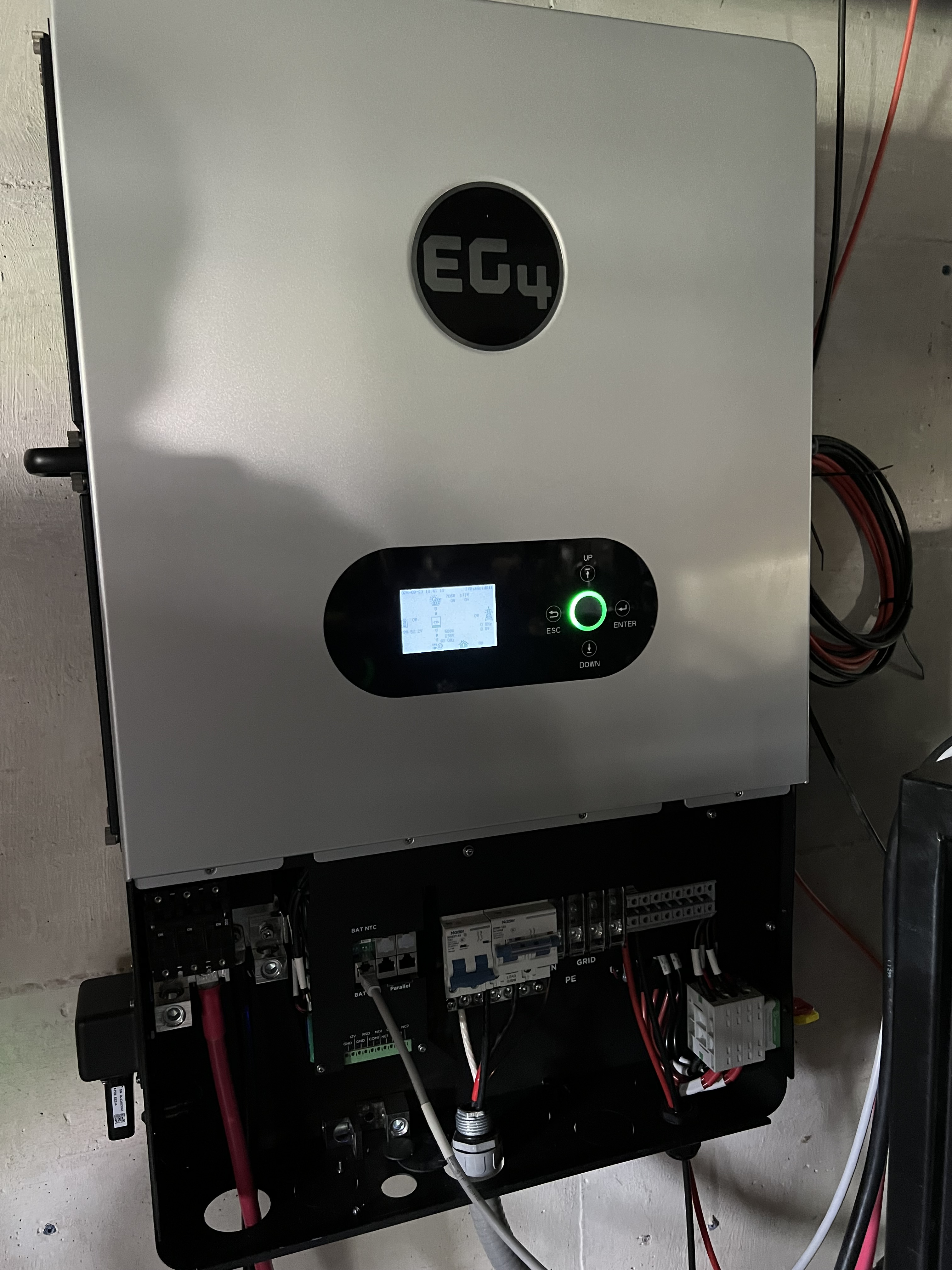
The new EG4 12000XP inverter is more or less installed and working just fine. It’s still in “testing mode” so to speak as you can see in the photo because we haven’t finalized the wiring. Those of you who are yelling at the screen about the wiring not meeting code and all of that, I probably know the NEC better than you do and I should point out that when that photo was taken we were still testing and hadn’t yet finalized the wiring. So before you launch into some kind of rant about it in the comments, just don’t.

There were some teething issues with the 12000XP, but they were minor. The first was it wasn’t “talking” to the batteries. That turned out to be a communications configuration error that was quickly corrected. The second was an odd glitch where the AC side would trip out with an overload error if there was power coming from the solar panels, and if the batteries were at 100% SOC an if there was an AC load of more than about 200W. And only if all three of those criteria were met. That turned out to require a software update and as soon as the firmware was updated it was working just fine indeed.

Now we just need to get the new solar panels up on the garage roof. They’ve been sitting in the garage since February waiting for eldest son to clear up some time on his calendar to work on it because MrsGF won’t let me do more than climb a step ladder after she caught up up that tree last spring stringing up an antenna.

And that’s about it for now. Thought I’d better post something to reassure the people who thought I was dead or something. Hopefully the Lumos review will be coming up in the near future.
Laser Engravers: Creality Falcon A1 Review.

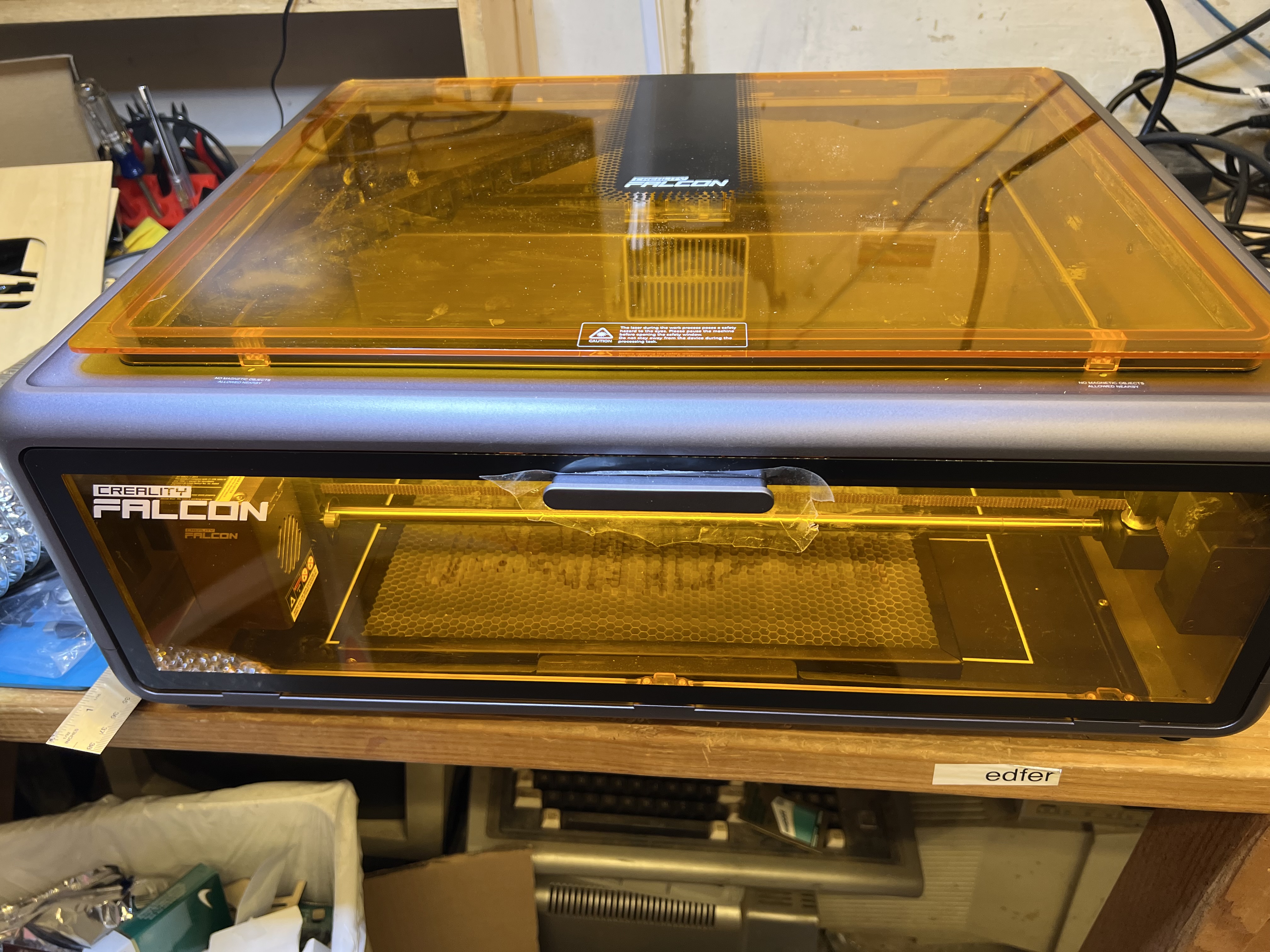
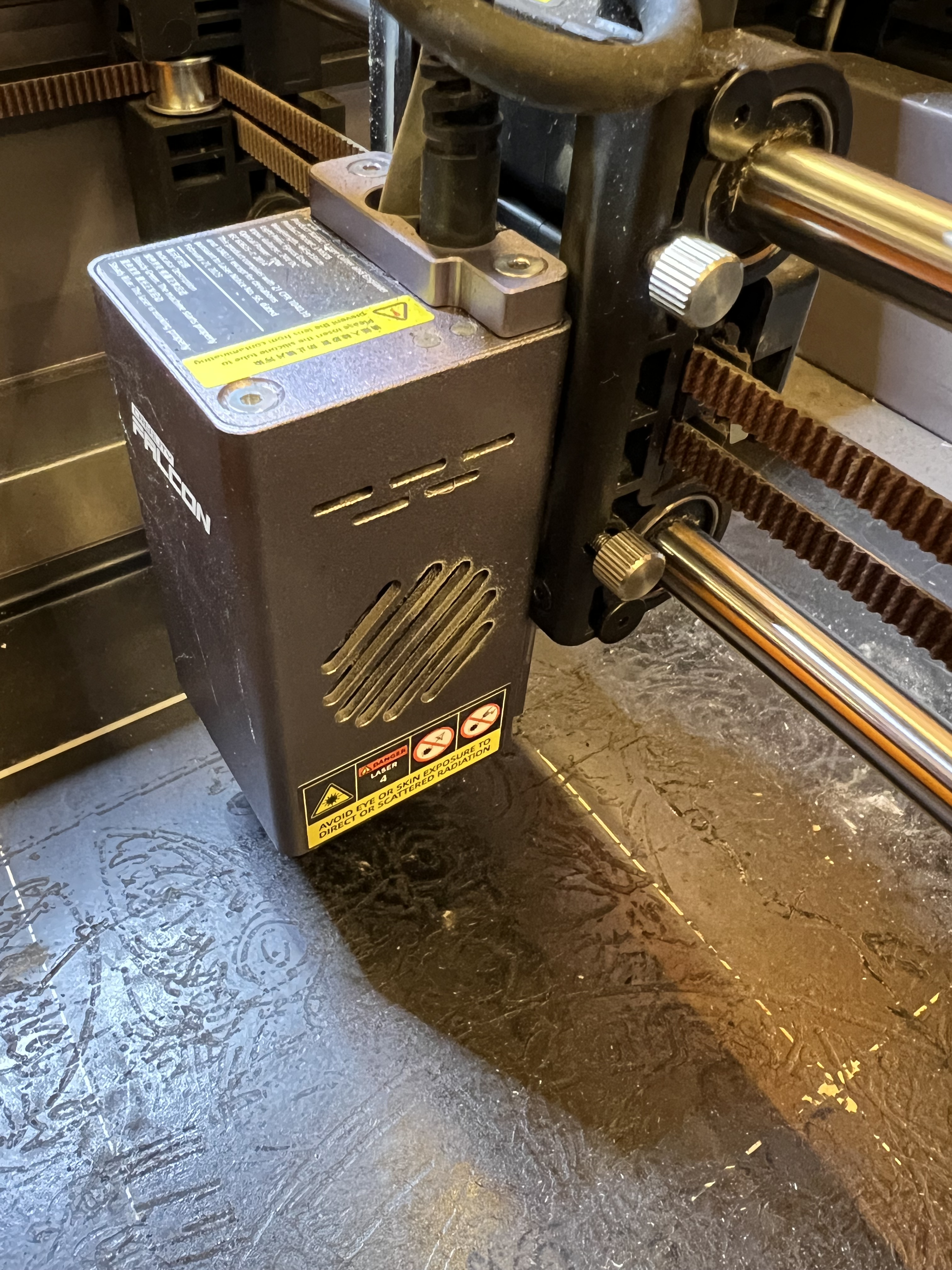
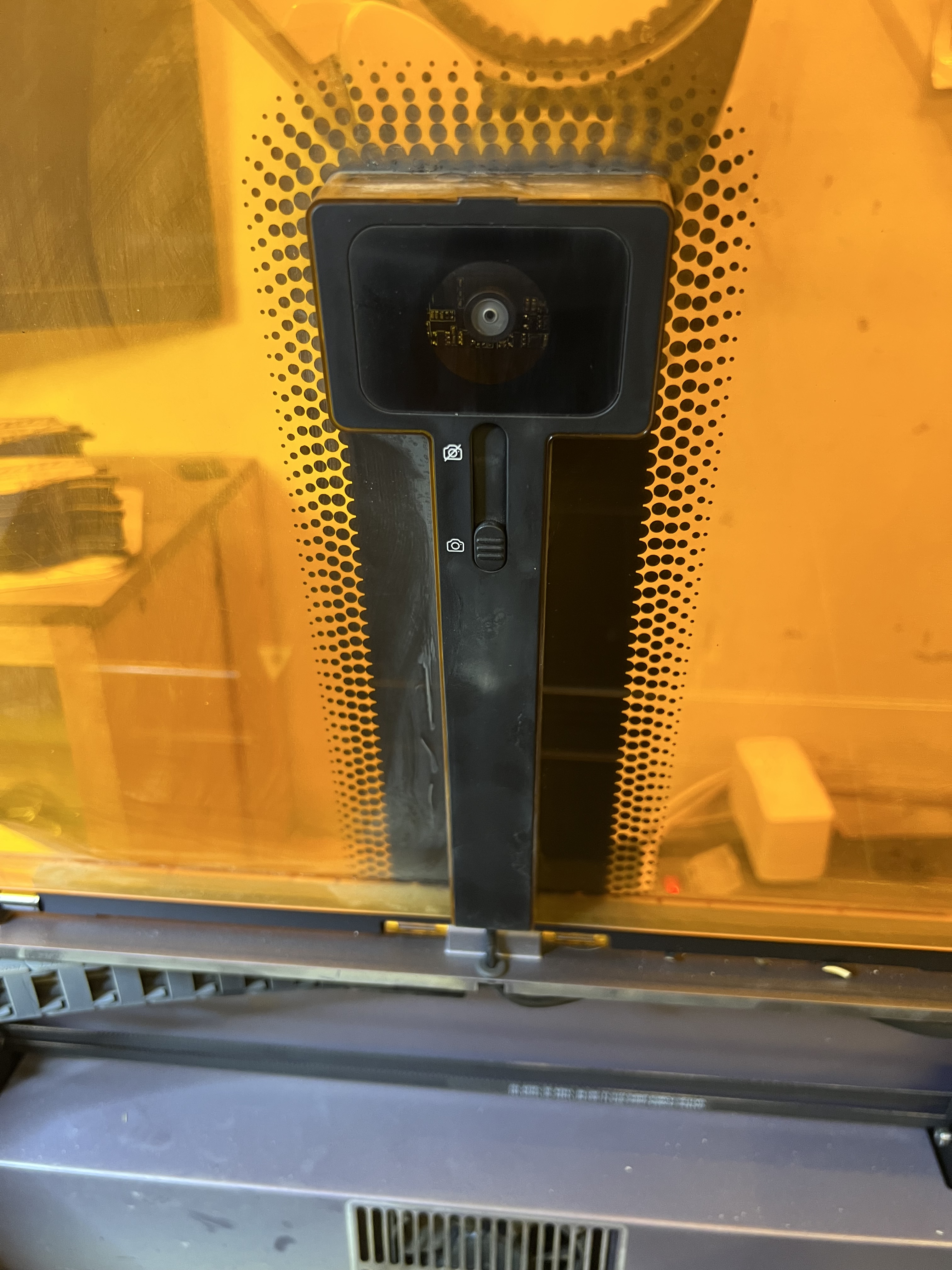
So I want to talk about laser engravers, specifically this beastie down below, the Creality Falcon A1 10W diode laser engraver/cutter. It’s fairly new to the market and hasn’t been on general sale for very long, and except for a few “influencers” on Youtube who got pre-production models for testing or were given one of them for free right after they came out, there haven’t been any real, honest reviews of this thing by people who have actually bought one with their own money and are actually using it, and using it hard, in real world conditions. A lot of you who read this are hobbyists, crafters, woodworkers and the like who tag along here for the rare article that pops up about this kind of stuff, so let’s take a look at this thing.

If you’ve been reading grouchyfarmer for a while, you know I dabble in a lot of things like wood working, wood turning, photography, drawing and sketching, and, yes, laser engraving. The last time I talked about it was some time ago when I was running the LaserPecker. I was using it to crank out little novelty things and it was fun, but it was seriously limited in both size and power and eventually the jobs I had for it dwindled, I lost interest in it and put it up on the shelf.

But recently some people got in touch with me and wanted some stuff done; misc. artwork and some novelty items, and being a sucker, I said I’d look into it. I dug out the old Laserpecker and immediately realized that it was going to be woefully inadequate. I needed something that could handle engravings that were much larger than what the LP could do, and more importantly, I needed something that could actually cut material, which the LP couldn’t do at all. On top of that, the LP was getting tired. It was obvious that the laser’s power was diminishing from the few test runs I did. And even worse, it was slow. Dear lord it was slow. I’d forgotten just how painfully slow it could be. There are much newer, improved versions of the Lasterpecker on the market now, and I briefly looked at the newer versions of the LP and nearly had a heart attack when I saw the prices. The one model that did come close to doing what I needed to do was pushing $3,000 for heaven’s sake!

To make a long and boring story a bit less long (but still just as boring) I ended up with that gadget up there. And by my standards at least, it looked very nice indeed.

It had a generous working size of about 15″ by 12″, which was exactly what I needed. It also looked like it was reasonably fast, simple to use, and the previews I saw were pretty good. And the price wasn’t bad either, about $600. So I bought one and so far it’s been handling everything I’ve been throwing at it and I’m quite satisfied with it so far.

A big plus is that it comes completely assembled. A lot of these lasers, even some of the expensive ones, come basically as little more than a bunch of bags full of parts and screws, and you have to spend hours putting the stupid thing together. No. Just no. With the Falcon I just took it out of the box, removed the packing material, plugged in the computer, the power supply and the air pump, installed the software on the computer, and it was ready to go. I did the first engraving with it literally in less than half an hour after taking it out of the box.

It is fully enclosed, with large, see-thru plastic panels made of material that shield the user from the laser so you don’t have to wear those stupid safety goggles whenever it’s working. There are safety switches on the door that shuts down the laser immediately if they are opened. There’s even a key lock to let you lock it down in case you have kids or others who like to fiddle with things they shouldn’t.

I already have a fume extraction system set up that is used with soldering, the 3D printer, the old engravers, etc. A big turbine fan with 4 inch ducts that sucks everything up and blows it outside.

And because it’s fully enclosed, with it’s own fume extraction fan, it means you don’t have to buy or build your own enclosure to keep it from setting off every smoke detector in the house. Which it will definitely do because laser = burning. You’re firing a high energy laser beam at wood, plastic, etc. It burns stuff. And burning makes smoke and toxic fumes. A lot of it. So you absolutely, positively must have some kind of vent system to get that stuff out of the house. I have mine connected to a high speed turbine fan with 4″ ducts to pull the smoke and fumes out of the Falcon and blow them outside. Unless you can place the unit directly in front of a window or some kind of vent you can run the included hose through, you’re going to need some kind of powered fume extraction system similar to what I have because the hose it comes with is only about 4 feet long when fully extended and the fan really isn’t powerful enough to push the fumes and smoke out when using it hard for burning through something like 7mm wood.

It has a generous working area, as noted above. It can work with material up to about 15″ X 12″. But at the same time it can do extremely accurate, extremely tiny engravings with no loss of detail as well.

Fourth plus, it’s reasonably fast. Much, much faster than the old Laser Pecker was. Let me give you an example. Here’s a video of the LP at work.

That disk it’s engraving is small, only about an inch and a half across. So yeah, that’s slow. Painfully slow. When I got the LP originally I was fairly new to this and didn’t realize just how slow it was. I know better now.

For comparison, here’s the Falcon A1 at work doing a fairly intricate engraving.

As you can see it is much faster. What it’s engraving up there is more than twice the size of what the LP is doing, and it is much, much more detailed. I didn’t sit down with a stopwatch and time things, but at a guess the Falcon could do three of those very fine, intricate designs in the time it would take the LP to do a relatively low resolution, simple design on that little disk.

It even cuts wood reasonably fast, faster than the old LaserPecker did engraving alone. Here’s another video showing it in action cutting. It just finished the engraving job in the first video up there, 12 key fobs for the brewery, and now it’s cutting them out.

It’s difficult to see because of the tinting of the plastic shield but if you look closely you’ll see clouds of smoke billowing up from underneath the wood.

Pretty slick. That’s not very thick wood, true, that’s only about 1/8″ thick plywood in this case, but it slices through it with no problem at all. Oh, and in case you’re interested, over there on the right is one of the key tags after it came out of the laser, before finishing. I just hang ’em up on some wire in the garage and put a couple of coats of a clear polyurethane. I get 12 of those out of a single sheet of 1/8 inch thick, 12″ x 12″ pre-sanded plywood.

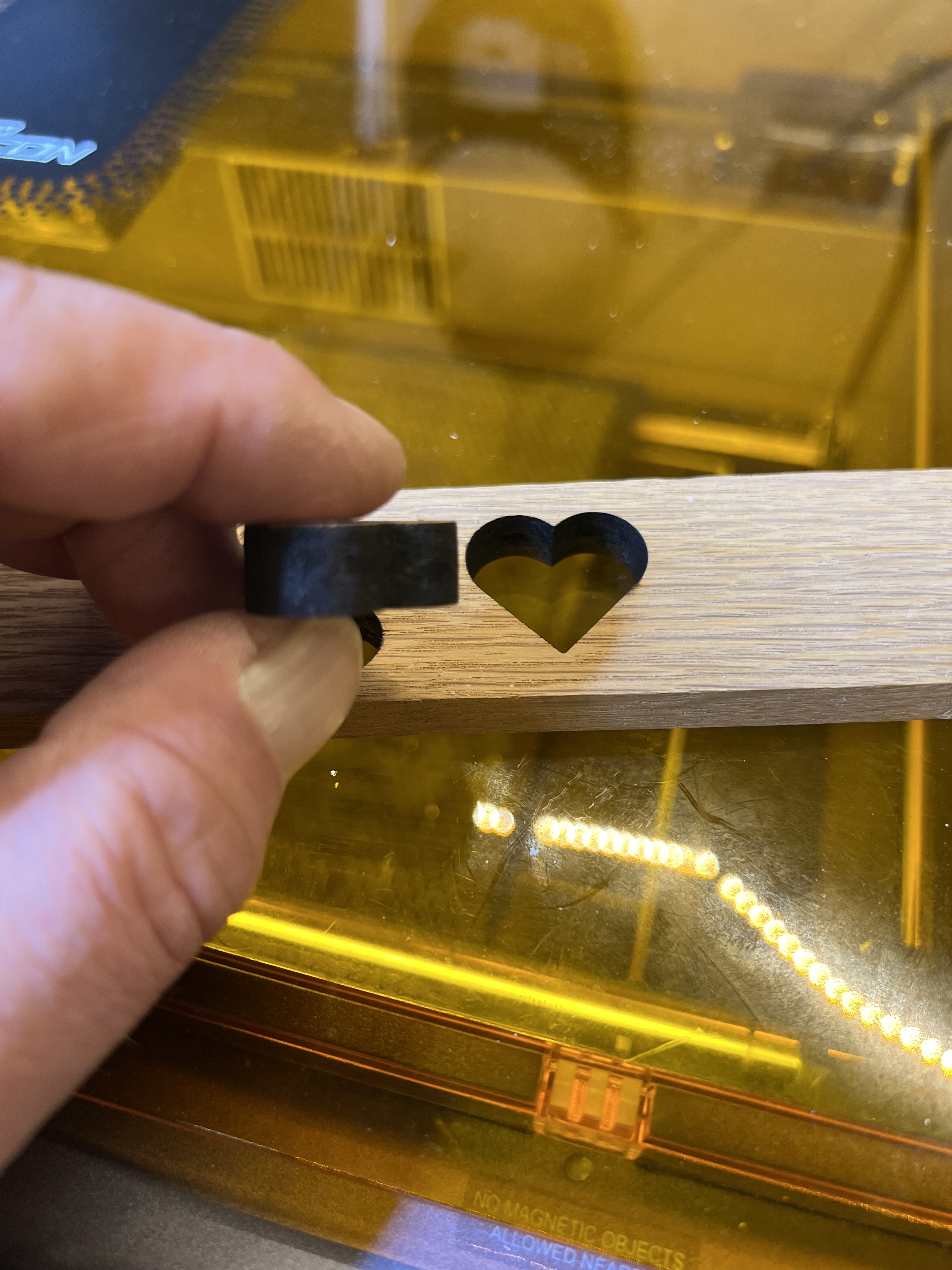
I started wondering just how thick it could go and threw in a piece of white oak scrap 3/8″ thick for the heck of it, and it did that over there on the left. I admit that it struggled a bit to do it. I had to slow the feed rate way down, but it still did it. Most of the time. Depending on the density of the wood I sometimes had to do two passes, but it cut it. I didn’t think a 10W diode laser could do that.

It can’t perform miracles, of course. Wood much thicker than that piece over there on the left is going to be just about impossible to cut no matter how slow you go or how many passes you make.

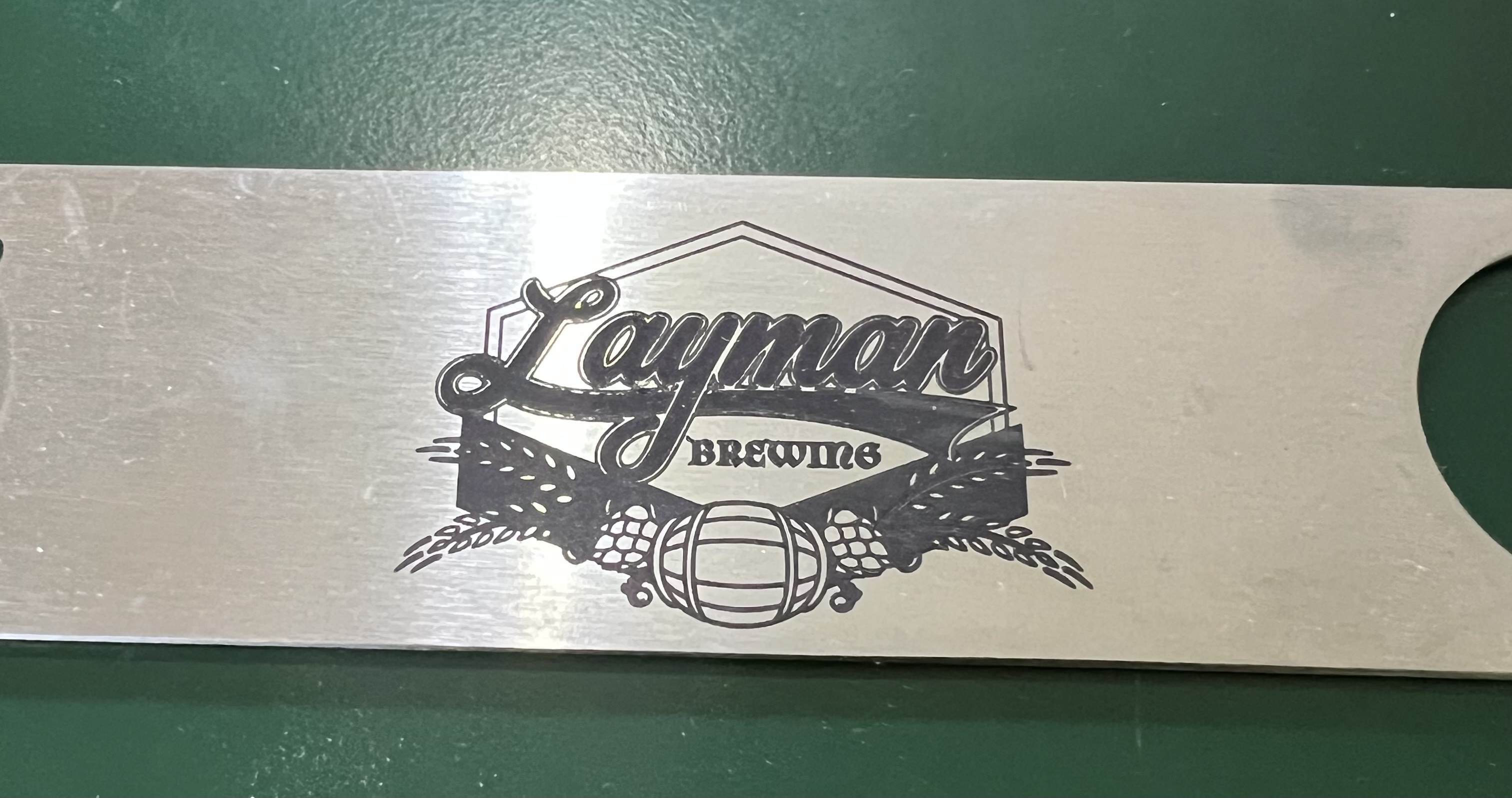
It can’t engrave metal. No low power, 10W diode laser can do that no matter what the advertisements may claim. It can’t cut even thin metal foil. You can use special coatings to get results like that over there on the left. That’s a stainless steel bottle opener. I did some of those as promotional items for the brewery down in Milwaukee. Yes, it was done with the Falcon, but that’s not engraved. It’s a type of powder coating. A special coating is applied to the steel, then the laser is run over it to melt and fuse the ceramic particles with the steel underneath. It is an extremely tough coating, too. Even scrubbing that with one of those abrasive “Scotch” pads won’t hurt it. It works way better than it has any right to, but it is not “engraving” as such.

The software that comes with it is reasonably decent, but could be much better. It can handle the basics of controlling the laser, but as a design environment it leaves a great deal to be desired. That’s fine for me because I use PhotoShop or Adobe Illustrator for all my design work anyway. You can do simple drawings, text, etc, import images and vector graphics, with the software it comes with, but it’s pretty basic stuff. You’re probably going to want to have an actual, real drawing program, something like Illustrator or something similar, to design/edit your graphics and then import them into the Falcon’s software to do the engraving/cutting.

There is a camera built into the lid of the machine which… Oh, heck, I was going to say it was a gimmick but it can be useful for aligning your drawing with the material you’re using. Sort of. You still want to use the good old fashioned “frame” function to have the laser head physically outline the engraving area before you actually start the engraving to check the alignment because the camera isn’t exactly the most accurate one I’ve ever seen. Even after going through the camera alignment procedure several times, it is still not 100% accurate, especially when close to the edges of the working area. So even when the camera is being used, you’re still going to want to use “frame” to check the alignment before starting a burn.

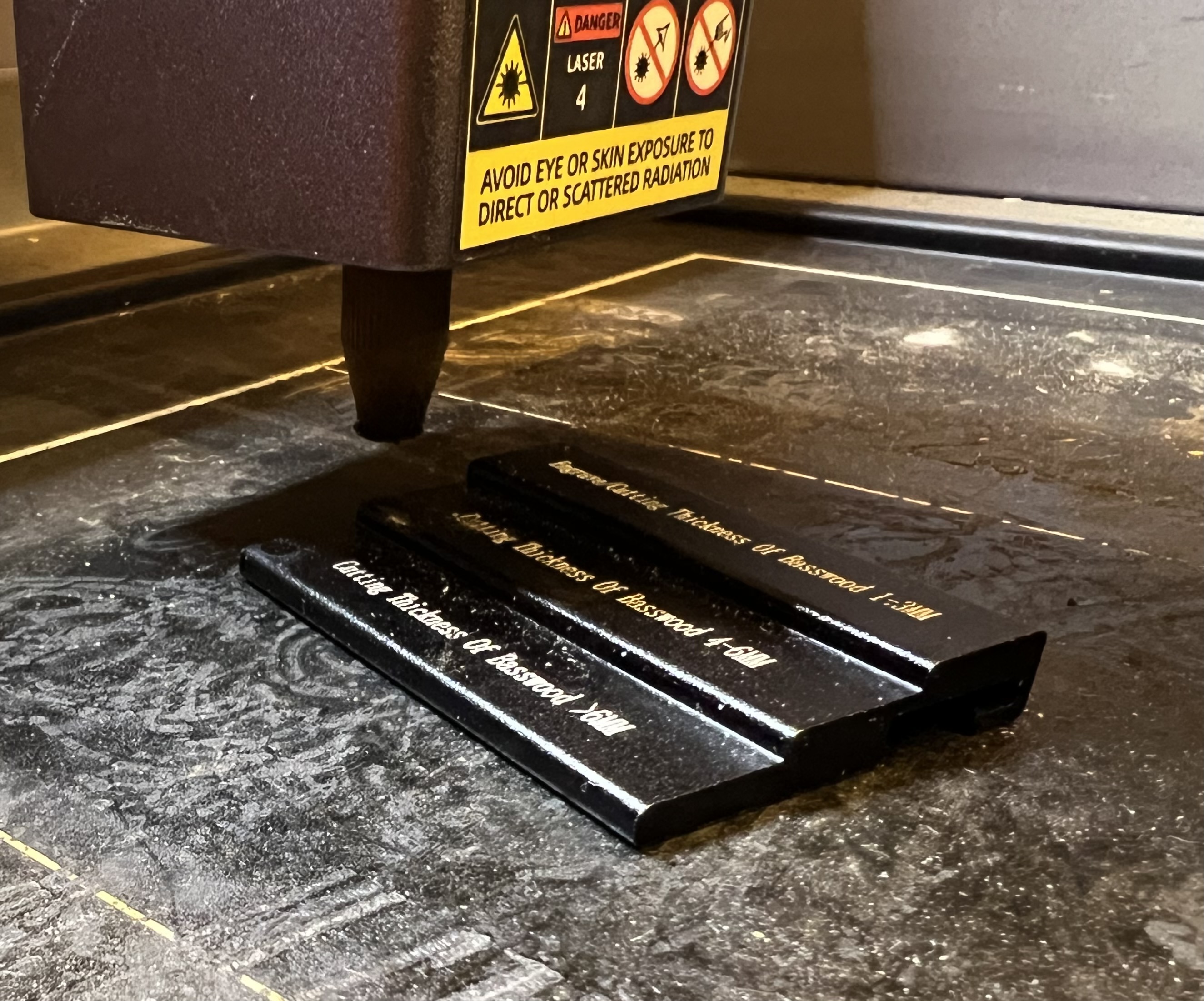
In order to work efficiently lasers need to be focused. The height of the laser above the item being engraved or cut needs to be set so the maximum amount of energy is delivered to the smallest possible area. As is the case with most of the lower priced laser engravers, this is done on this one by loosening those knurled knobs there on the right and manually raising or lowering the entire laser head up or down. Creality includes a little stepped alumium block specifically to help with the focus. Just lift the head up, lower it down until the nozzle touches the desired step on the block and tighten the knobs. Takes only a few seconds.

Let’s talk about that baseplate for a moment. Some people call it a “crumb tray” and I suppose it is, in a way. It catches bits of whatever it is that you’re cutting. It is also there to protect the table you have the engraver sitting on from the laser, and to help contain smoke and fumes to make it easier to extract them before they get into your house/shop. Even though the base plate is screwed down when it comes from the factory, you’re going to want to remove the 4 screws that hold it down so you can remove the tray easily for cleaning. You’ll also need to remove it and install risers on the base of the machine if you want to use the rotary attachment.

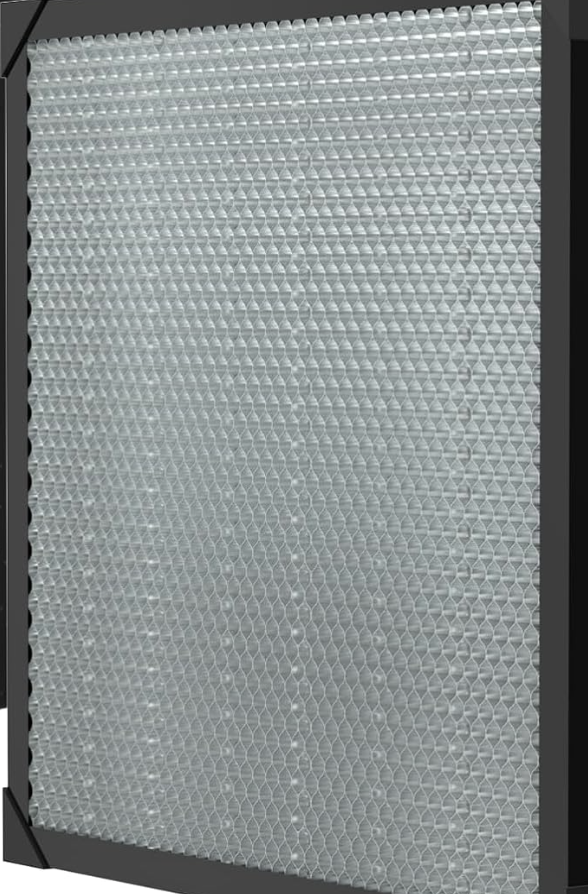
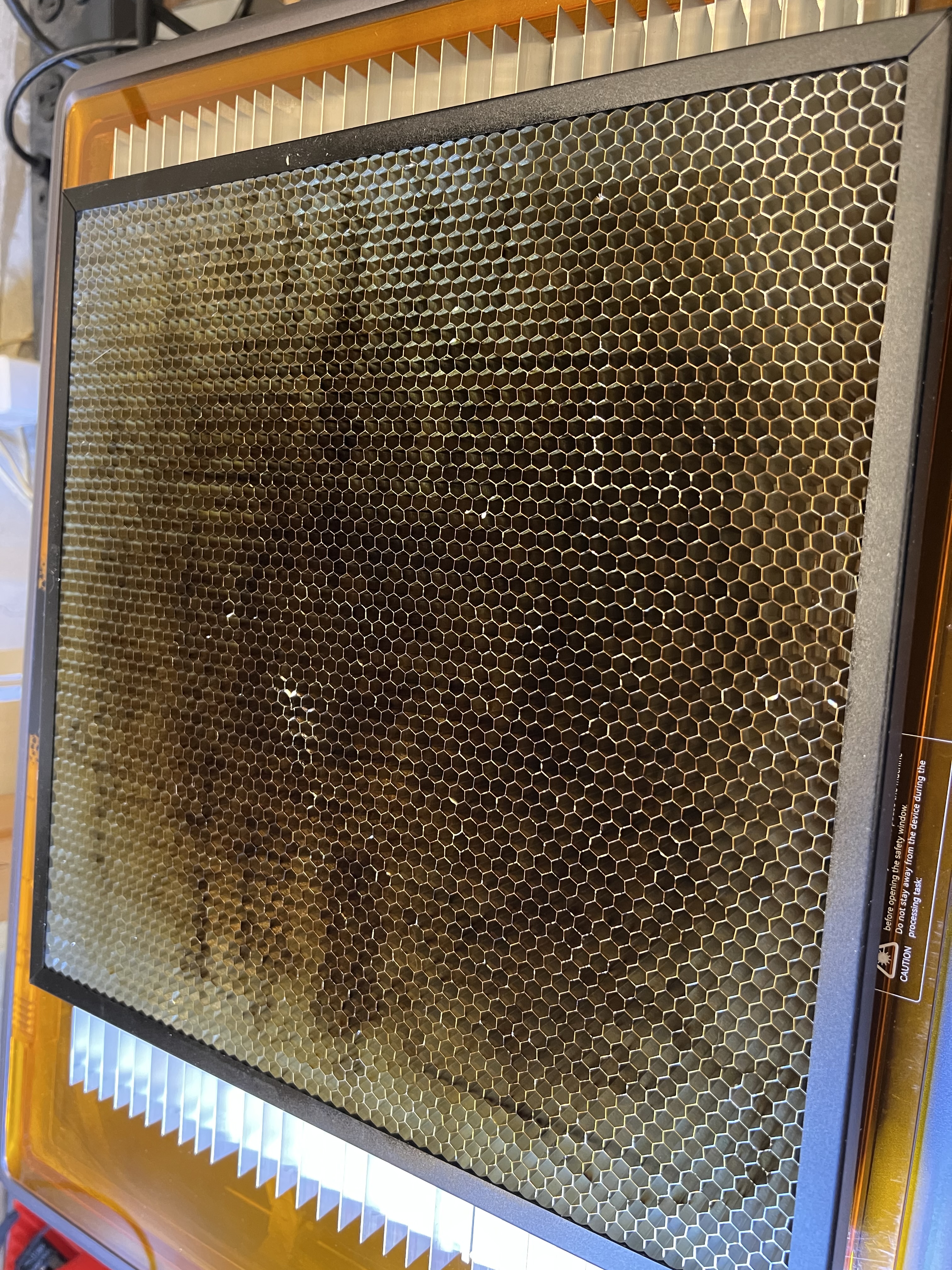
If you take a close look at that base plate or crumb tray, you can’t help but notice how beat up it looks. It’s charred, burned, covered in cooked on carbon and tar from burning wood and is just plain nasty. The reason why is because when cutting wood, that laser beam burns straight through the material and directly impacts that plate. One thing I ding Creality for is not including a honeycomb work platform like the one below with the A1.

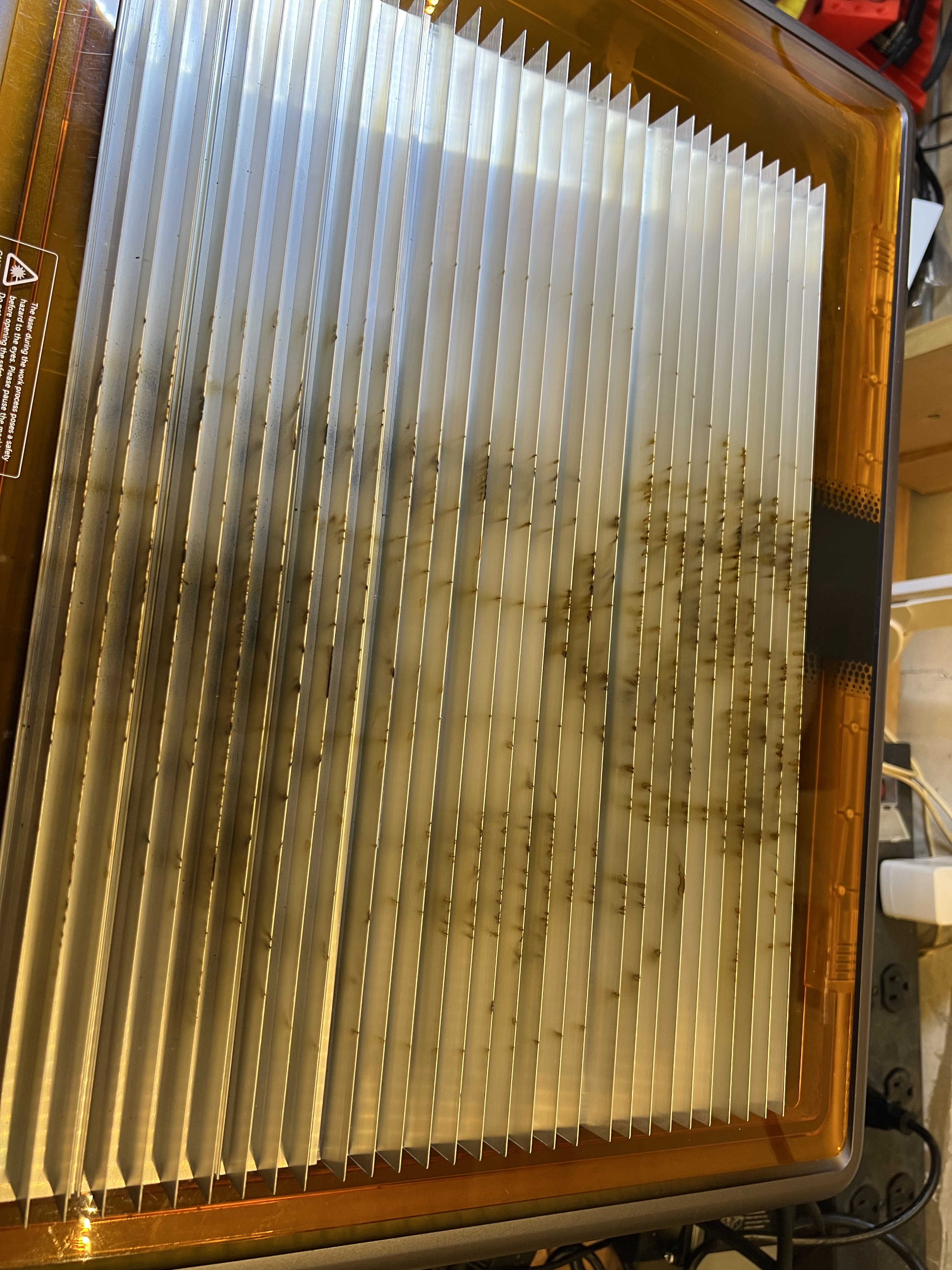
If you’re going to be cutting anything with a laser, you absolutely need something like this, or something like this extruded aluminum one below that is what I’ve come to favor more.

Notice the scorch marks, carbon build up and even outright damage that’s already been done to that aluminum grid up there from just a few hours of use with only a 10 watt laser.

And you absolutely need something like this if you’re cutting material with a laser. It helps to prevent flashback that can damage your material, helps with fume/smoke extraction, helps dissipate heat that might cause your material to warp, etc. Especially flashback. This is where the laser burns through the material, hits the underlying surface, and reflects back up to damage the backside of the material you’re working with.

IMO every laser that is capable of cutting material should come with one of these. I’ve come to prefer the extruded aluminum one but the honeycomb version works just as well.

Okay, let’s wrap this review up. You have probably realized that I really like this unit. I’ve been using it and using it hard since I got it. It’s got dozens of hours on it already in just the few weeks I’ve had it, and it’s handled everything I’ve thrown at it.

The good:

  • It come fully assembled, nothing to bolt together. Just unpack it, connect the wires and tube for the air pump and go.
  • It’s simple to operate. Even a novice should be able to get it up and running within an hour or so of unpacking it and setting it up.
  • Build quality is excellent. Fit and finish is superb. It’s made of quality materials and is very sturdy and well designed. No squeaks, no rattles, nothing. Everything was square and level right out of the box.
  • While it’s rated at 10W of power, it works far better than its wattage would indicate. It easily handles cutting dense plywood up to 1/4″ thick and was able to cut through 3/8″ thick solid white oak for heavens sake. I have to slow the feed rate way down, of course, but that it cuts material that thick cleanly is impressive for a 10W laser. Of course the air pump helps enormously with that. It makes a huge difference. But a 10W laser cutting thick wood that easily is still impressive.
  • It is fully enclosed which makes both fume/smoke extraction and eye safety far easier. Safety switches prevent the laser from operating if either of the covers are open, so you don’t have to wear eye protection when it’s in operation.
  • It is reasonably fast, at least as fast as any other laser in its price range.
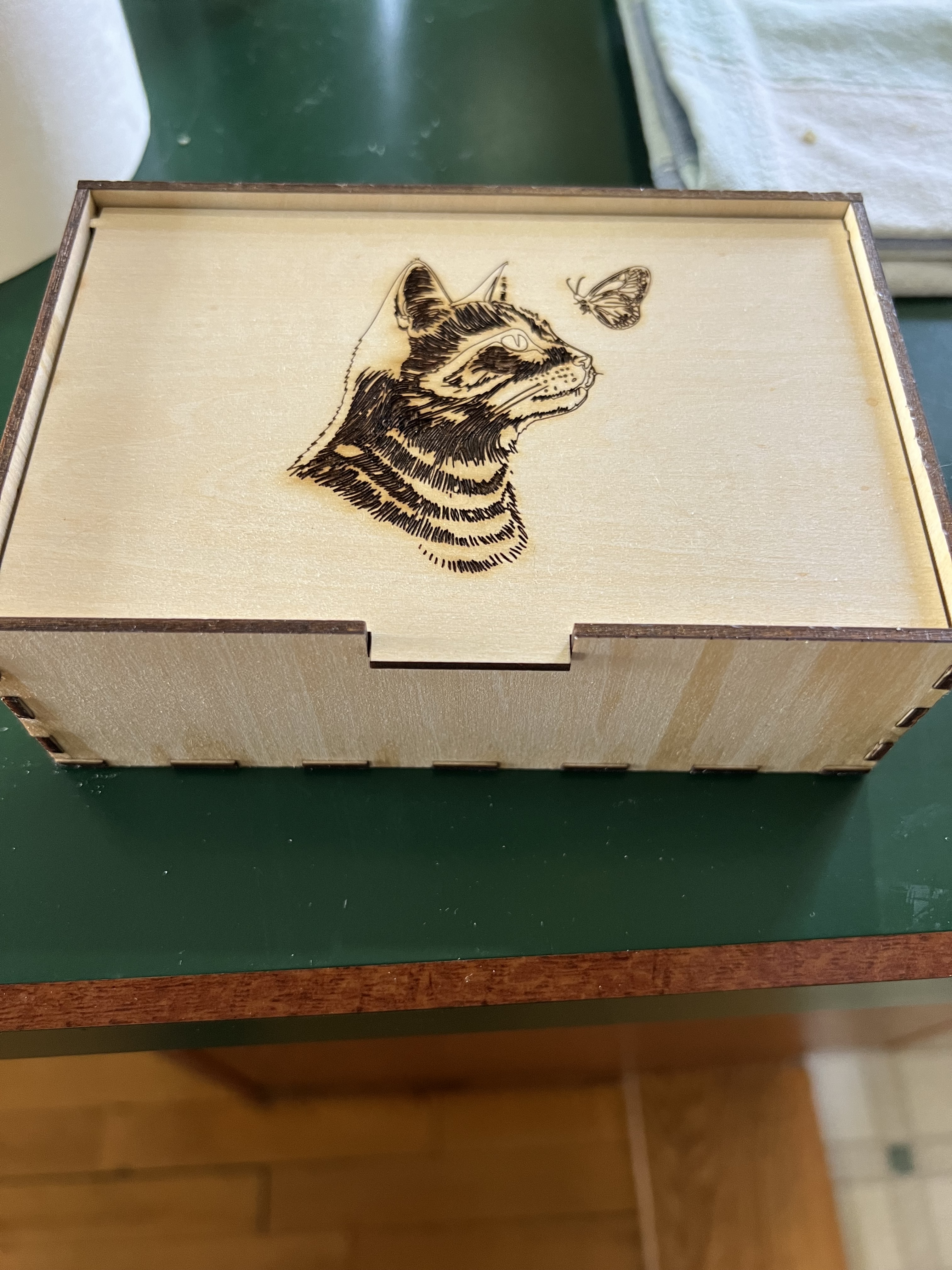
  • Laser positioning is extremely accurate and the thickness of the kerf (the amount of material actually removed when cutting) is so tiny that finger joints when making boxes were so tight the box up there on the right didn’t need glue to hold it together. This also results in extremely fine engraving lines.
  • It is LightBurn compatible. LightBurn is the software that most professionals use to run laser engravers/cutters. Some makers, for reasons I’ve never understood, try to make their equipment as proprietary as possible, locking you into using their software and their’s alone. I don’t use it myself, the basic functions of the software it comes with are just fine for me and will be for most people. But being compatible with Lightburn is a big plus.
  • So far it has been absolutely rock solid dependable. I got this thing back on April 10. It is now May 23 as I write this and the Falcon has been running 4 – 7 hours a day, almost every day, since I got it, without missing a beat. That’s probably far more usage than it would get from the usual crafter or hobbyist user. It’s been a real work horse so far.

The bad, and yes, there are a few things.

**Last Minute Edit**

I said that there is no manual for the software originally. That’s recently changed. They now have a manual for the software online at: https://wiki.creality.com/en/laser-engraver/software-manual Even better it isn’t actualy horrible. Mostly. It’s at least good enough that you’ll get the basics down before you start using it. You’ll still need to do some experimenting I suspect.

  • The lack of error reporting, either via a display on the unit itself or at least via the software, is troubling. There is basically no way to figure out what’s wrong if something does glitch. About four times now the unit has not responded when trying to engrave something. it just sat there beeping. I have absolutely no idea why. In each case turning it off, waiting a couple of minutes, then turning it back on, cleared whatever the problem was.
  • while I give them credit a built in fan and a vent hose to provide some fume extraction, the fan built into the unit really isn’t strong enough and the provided hose isn’t long enough to do you much good unless you have the unit parked right in front of a window. If you can’t put it in front of a window, you’re going to absolutely need some kind of supplementary fume extraction method to get the smoke and toxic fumes out of your workspace.
  • It absolutely should come with a honeycomb bed for cutting. This is, IMO, an essential item and it should come with one out of the box, it shouldn’t be an extra cost option.
  • Calibrating the camera is a pain in the neck, and requires you to waste an entire 12X12 sheet of wood or cardboard. Even worse, even after following the instructions explicitly multiple times, the camera positioning still is not accurate, especially when you get farther away from the center of the workspace.

Conclusion – I’m sort of nitpicking here with the “con” listing. None of those things are really a deal killer. Creality got a lot right with this thing. The price point and capability of this aims it squarely at people who are at the point where they’ve outgrown the cheap, slow, open frame beginner’s engravers that are really not good for much except for messing around, and who are ready to move up to something that is a serious tool that can do serious work, but who can’t afford or who aren’t ready yet to drop a couple of thousand dollars on a professional level laser. I don’t know how well the Falcon A1 would hold up in a professional production situation, but I’ve been using this thing hard since I got it, working it far harder than the average hobbyist would, and it’s handled everything I’ve thrown at it.

The Usual Disclaimer: I get no financial compensation from Creality or any other company. I purchased the Falcon A1 at full retail price with my own money. I’ve had no contact with the company at all.

Spring Cleanup, Antennas, Tree, Gardens, Laser Engraver and Stuff

It’s spring. Sort of?

This is sort of a catchup post because I haven’t really had enough material to justify doing an update to the blog until now, so let’s get started.

It’s spring cleanup time. Or at least that’s what the calendar tell me. Outside, though, well, it’s been bloody cold and nasty. We had about only three days here where the temperature got above fifty. Mostly it’s been in the 40s, even dipping as low as the mid twenties at night. Not exactly my idea of April weather.

It’s still a mess back here but it’s starting to look a lot better. Spent almost an entire day cleaning up the yard.

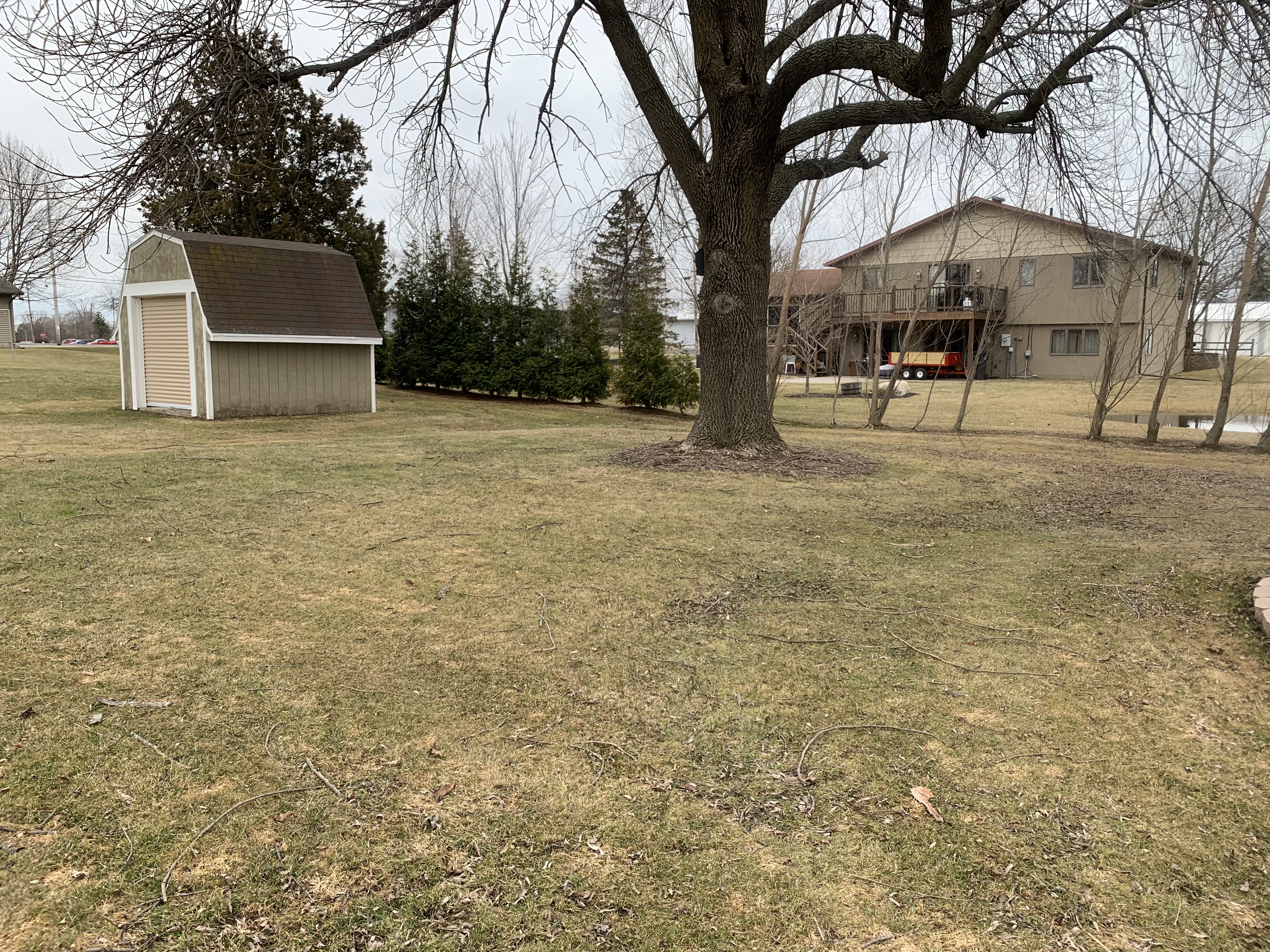
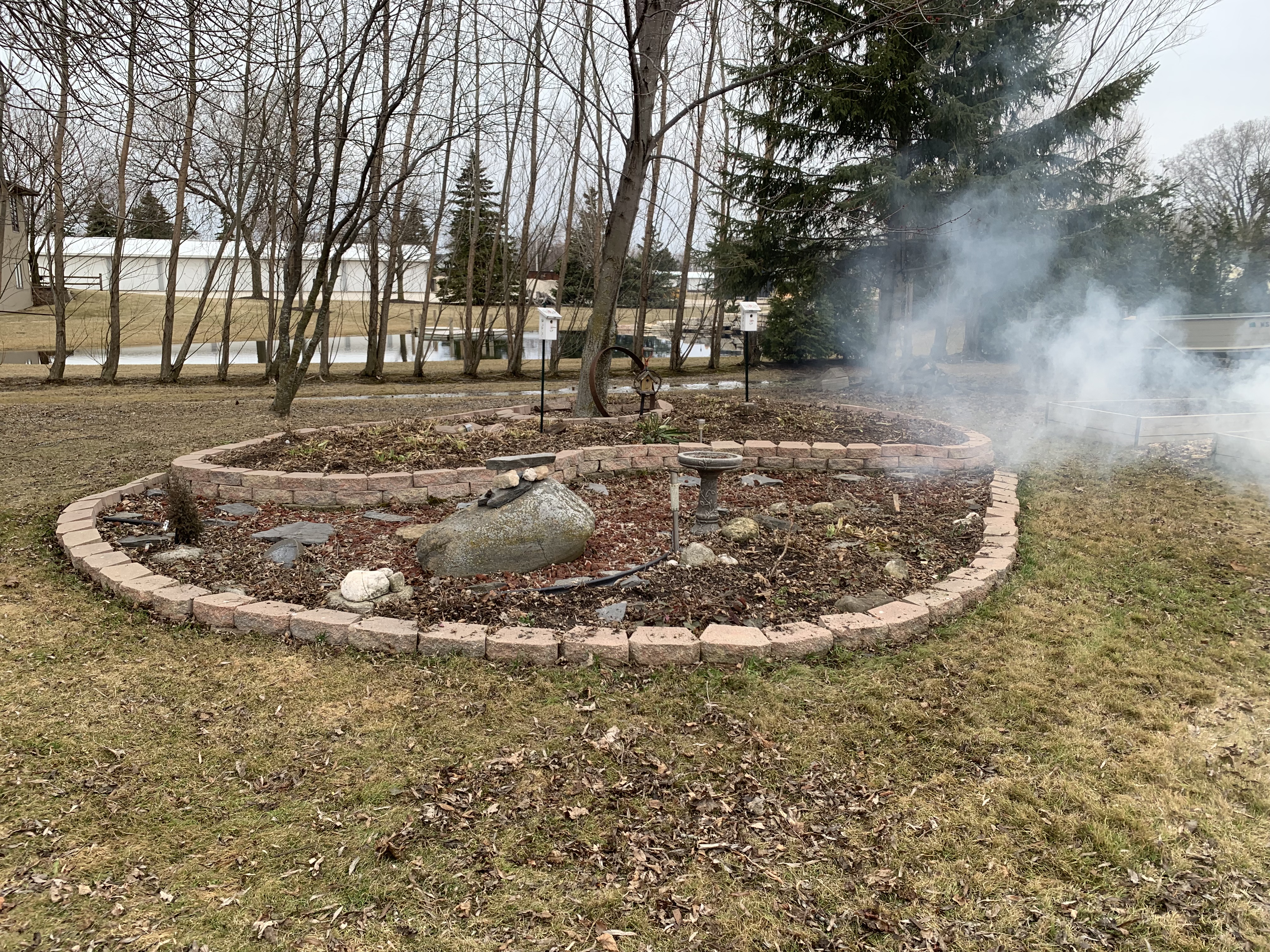
It’s a mess back there in the yard, alas. MrsGF and I have been working on cleaning up the debris left from the winter and it’s starting to shape up now finally. The old ash tree in my yard and the dying maple in my neighbor’s both have been shedding branches and bark all over. The smoke you see in the photo up there is because we lit the fireplace back there both to warm up and to deal with the twigs and sticks and bark that had come off the trees during the winter.

We’re probably going to do a major expansion of the corner garden in the photo up there. That’s prime growing area there in that corner. It faces the south west so it gets full sun almost all day long, with light being reflected off the white siding, and in that sheltered area it’s the first ground to thaw in the spring and the last to freeze in the fall, and it’s very well drained. We’re going to expand that area in a semicircle out past that post with the birdfeeder, and it’s going to extend along the right side of the house past the downspouts. That will more than double the amount of square footage we have there.

Back here hopefully within a couple of weeks that big tree will be gone. It looks relatively healthy but it really isn’t. It sheds branches like rain drops whenever there is a stiff breeze and up near the top of the tree it’s starting to rot where to large branches come together off the main trunk. It’s also an ash tree so I’m surprised the emerald ash borer hasn’t attacked it yet. If we don’t take it down soon a good wind storm will take it down for us. We already had a tree service come in to look at it, and as soon as it dries out enough for them to get their equipment in there without sinking into the ground it’s coming down, along with the neighbor’s dying maple.

Getting that tree out of there will also open up a large part of the yard to full sun so we can grow a lot more stuff. We aren’t quite sure what we’ll do with the area but we’ve been sketching out some preliminary plans for a large decorative feature. Maybe. Depends on how ambitious we get.

Antenna stuff: I finally got the new off center fed dipole up when we had a rare warm, sunny day. So I was up on the roof of the garage, then about 20 feet up a couple of different trees and, well, let’s just say it was an interesting experience.

Those of you who are amateur radio operators will undoubtedly note that it is not exactly the ideal configuration for an OCFD. It’s way too low to the ground, the two legs are running in a rather tight ‘V’ configuration instead of running out straight, etc. It’s only about 12 feet off the ground and it really should be something like 30 – 40 feet up. But you work with what you have. I don’t have a tower, don’t have tall trees, and I don’t have the space to string up a 140 foot long antenna in what is supposed to be the “ideal” configuration.

And guess what? Despite all of that, the antenna works just fine and dandy, thank you very much. According to the good ole boys I sometimes listen to down on 75 meters pontificating about antennas and other things, this antenna shouldn’t work very well in this configuration. Only it does. Since I put it up I’ve had contacts in California, the Carolinas, well, all over the continental United States and Canada, and according to PSK Reporter I’ve been heard in Europe and Australia as well.

Would it work better if it were in the “ideal” configuration, up above 30 feet with the legs extended properly? Probably. Don’t care. You work with you got.

Looks like I got this one up in time because my vertical antenna is now doing weird things. The thing got whacked by a fairly good sized branch from one of the trees and I think it knocked something loose so I’m going to have to pull that thing down one of these days and check that out.

Laser engraver: The nice delivery driver who brings me goodies from time to time just dropped off the Laserpecker 2 the other day. I’ve been looking forward to getting my hands on this one after playing with the Laserpecker 1 for a few months. I have the LP2 up and running and it is very, very, very nice. It is much more powerful than the original, much, much faster, offers much higher resolution. The version I have here comes with the roller system in the box on the right. That allows it to engrave cylindrical objects like water bottles and the like. And most interestingly of all, the roller mechanism can be reversed and turned into a drive mechanism for the LP2 allowing it to travel along a board or tabletop or other smooth surface to make continuous long engravings. I haven’t set up the roller system yet and I’m looking forward to trying it.

And best of all, for me anyway, it is no longer tied to a stupid phone app to run it. You can still use a phone app, but there is actual real PC software that will control this thing. It looks like the PC software gives much better control over the engraver than the phone app did. Best of all I don’t have to fiddle around trying to get artwork I make in Photoshop imported into the stupid phone app. I can do everything right on the computer now.
Unfortunately the PC software has some serious problems with it. It’s riddled with bugs, odd quirks, difficulties in connecting the PC to the LP2 and other issues. Most of those can be worked around but frankly the PC software looks like it was never properly tested before being released.

The LP2 is most definitely not cheap. I can see a hobbyist spending $250 on the Laserpecker 1 to do the occasional engraving on an art project. It’s a fun little gadget that works pretty well and at that price you don’t need to use it a lot to justify the expense. The Laserpecker 2 package that you see here with the roller system will set you back $1,200. IMO this pushes it well outside of the hobbyist level product. In order to justify that kind of expense you need to have a serious application for something like this.

Anyway, look for a full review of the LP2 in the near future.

And that’s about it for this time. Now if only the weather would start to warm up…

Review: LaserPecker Pro. But the most important question is, Can It Engrave A Banana?

Laserpecker Pro set up and ready to go, without the protective shields in place

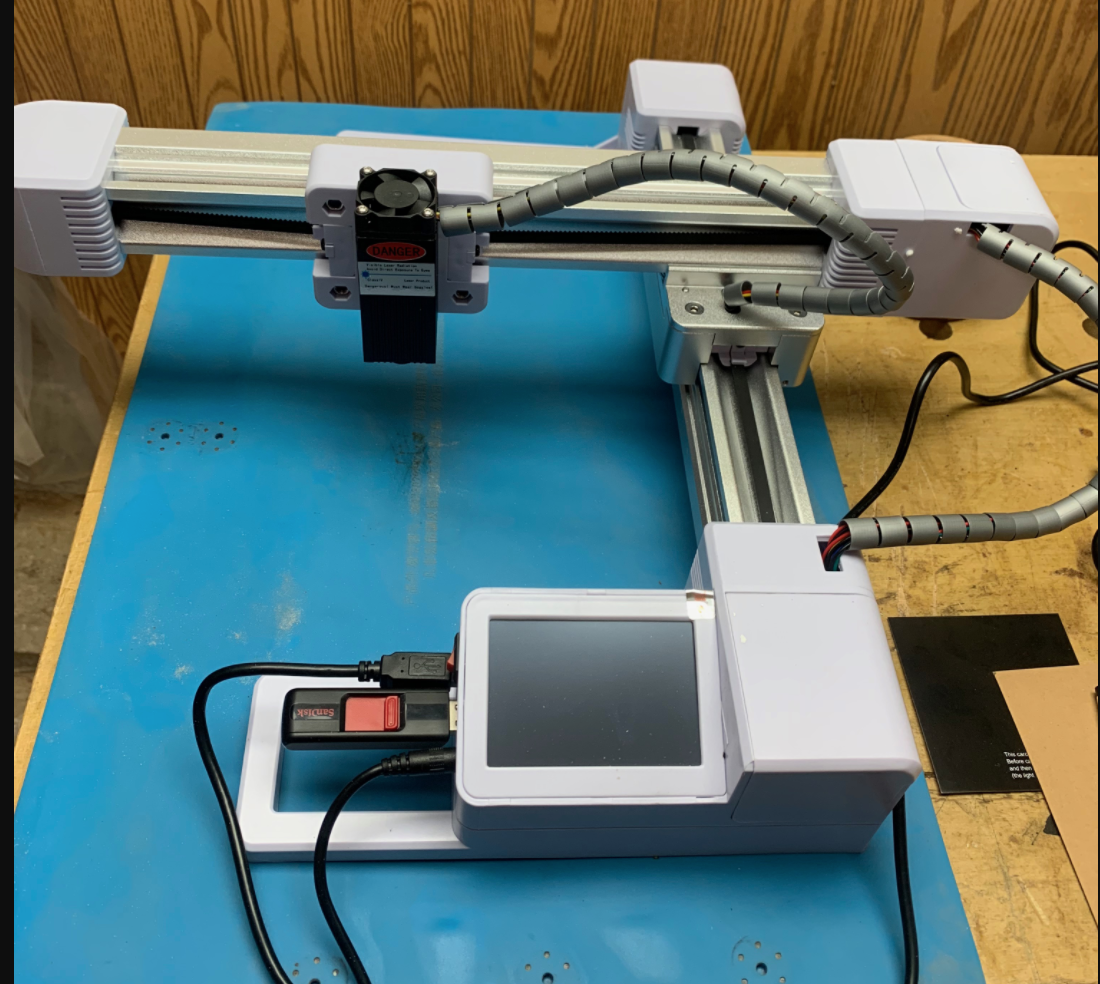
So it was time to replace my old laser engraver. That’s it over there on the right. And what’s replacing it is the one in the lead photo, the Laserpecker. The one over on the right is a more or less generic style engraver made in China that hit the consumer market a few years ago, often at ridiculously cheap prices. They were complicated machines, usually based on cheap CNC machines with the cutter replaced with a laser. There were rails and stepper motors and drive belts and complicated mechanical systems in addition to the controls needed to run the laser itself. As you can tell from looking at the two photos, the Laserpecker is much, much different. It doesn’t ride on rails, there are no stepper motors or belts. In fact it doesn’t move at all. It is entirely motionless during the entire engraving process. The only thing that moves is the laser. Here’s a quick video review I found on Youtube that will show you exactly how it works.

Now everything he says in that video is true, but needs to be taken with a grain of salt. He’s going through this so fast that he has no time to tell you about some of the issues you have to deal with if you get one of these. And there is some misleading information floating around out there about the LP that needs to be cleared up as well

Let’s look at the hardware first, and start with different models and prices. What the reviewer up there is showing is the standard Laserpecker which is selling for around $250 or so right now. It includes the LP itself, the tripod, a ruler to measure distance, a small power supply, and a pair of safety glasses. There are apparently three other versions. The only difference between them is that they come with more accessories, the most expensive of which is the focusing stand like the one shown in my photo at the start of this review.
The first ‘step up’ so to speak includes that stand, and more than doubles the price from around $250 to about $530. Why so much for a stand? It isn’t just a stand. In addition to getting rid of the awkward tripod that stand has some nifty electronics in it. It connects to the LP and when combined with the laser it eliminates the need to carefully measure the distance between the LP and the object being engraved. Just touch a button and it raises or lowers itself to the proper height to focus the laser.

The next option up adds a set of glass shields, edged in magnets, that clip together to form a folding safety screen to protect your eyes from the laser. Those are the panels over there on the left. You can also get just the safety shield from LP. Should you? Yeah, probably you should. Lasers and eyes don’t get along very well. You need some kind of eye protection when using any laser device. The panels are convenient, easy to set up, fold up flat for storage, and can be configured to work around just about any shaped object. And you can leave one corner open for a fume extractor, something you also absolutely need. I’ll talk about that a bit later.

The next level up only adds a storage case to hold all of the various parts which, of course, you don’t need at all.

The “pro deluxe” model that I got came with these 3 boxes

I got what was labeled the “pro deluxe” model in the ad when I bought it, which includes the same laser head as shown in that video up there, the automatic focusing stand and the shields. Also included were the power supply, which is a tiny power pack with a USB connector in it and a cable with a USB C connector on the other end to go to the stand. The stand then connects to the LP itself with a short cord. There was also a set of safety glasses, simple instructions and some bits a paper that apparently you’re supposed to engrave for some reason.

Let’s talk about specifications. The LP uses a 405nm, 5 watt, blue violet laser with a specified lifetime of 10,000 hours. So the laser is fairly typical of laser engravers in this category. You aren’t going to be using this to burn through metal or anything else for that matter except paper and thin cardboard. It isn’t made for that. It’s an engraver. Period.

The included power supply is tiny, hardly the size of a small phone charger. It puts out 5 volts and is rated for 2 amps which, well, it isn’t a lot, really. I was rather surprised to find a laser engraver that ran at that low of an amperage. In some of the ads I’ve seen them running this thing from one of those little “power bank” battery packages that lets you recharge a cell phone.

The LP does handle fine details better than my old laser did.

The LP can do an engraving of up to 100 x 100 mm in size, or about 4 x 4 inches. Now that is smaller than the area that can be covered by some other engravers, but the size really isn’t an issue here. The LP is aimed at hobbyists, crafters and woodworkers who are probably working on small projects. Basically people like me who need to do the occasional company logo or piece of artwork to embellish a project. That 4×4 size isn’t going to be a problem for people like us. Most of the engravings I do are half that size or less. And you’ll want to keep engraving size small because larger ones take a long, long time. Almost all of the videos I’ve seen promoting the LP (and to be fair other laser engravers as well) drastically speed up the video and make it look like an engraving that really took an hour or more only took a few seconds.

The LP itself is a very simple looking little round box. That’s it in the photo over there on the right. That’s the entire thing, except for the stand. There are no moving parts, no rails, no motors, no drive belts. That’s it. Unlike my old engraver, the LP has no moving parts at all. The only thing that moves is the laser beam itself. It either attaches to the tripod with a screw or it sits in a cutout on the top of the stand if you opt for that. It’s about as simple as it gets, really.

Lasers are, of course, light, and in order to get the sharpest beam possible they need to be focused just like you need to focus the lens of your camera to get the sharpest image. With my old engraver this was done by adjusting a lens. But there is no lens with the LP, it is fixed focus. The LP has to be around 8″ away from the object being engraved or the laser won’t be properly focused. They include a ruler to make it easier to measure. If you’re working with the tripod you need to adjust the feet and use the ruler to get the measurement right. It can be a bit fiddly but working with just the tripod isn’t really a problem.

If the LP seems like something you are interested in, I strongly recommend you get the bare bones version that comes with just the laser head, tripod, power supply and safety glasses. You absolutely do not need the autofocusing stand. Now that I have the thing I wish I hadn’t bought the stand. Yes, it makes it a bit easier to set the height properly and it is pretty slick. But I’ve had some problems with the auto focusing stand that I’ll come to in just a bit. And in any case, it adds $200 to the price of the Laserpecker. I really don’t think it’s worth the money. Fiddling with the tripod is a minor nuisance, but once you do it a few times and have some practice with setting it up and getting the distance right it’s not that hard to do.

The other optional accessory that comes with the Laserpecker Pro Deluxe version that I got is the safety shield. That’s it below.
This shield is really slick. It’s made up of 4 glass panels made of a material designed to protect your eyes from the laser. Those metal strips along the edges are magnets. The whole thing just clips together. You can move the panels around, adjust the shape, leave one corner open for venting, etc. It is very, very handy and I like it a lot. Those 4 panels are available separately and sell for $90 at the moment. Now that may sound like a lot of money but actually it isn’t that bad. Protective glass panels for lasers are expensive if you want to build your own. At least the good ones are. When compared to high quality protective shielding panels available elsewhere, these are actually pretty inexpensive. You could get along without these, but remember that the LP is designed to be easily carried around and used anywhere. Quite possibly with other people present. Do you have protective glasses for everyone in the room when you’re using the thing? If not you need some kind of shielding, and these do the job. IMO the $90 price is worth it.

Now let’s look at the auto focusing stand. At first I liked it a lot, but as I’ve used it more I’ve come to think that going for the “Pro” package that included it was a waste of $200.

That’s it up there, and it is very, very nice. (Or so I thought at first.) Well it had better be nice considering it costs almost as much as the Laserpecker itself. It is undeniably very well made. But the more I worked with it the less I liked it and now I think it isn’t worth the money.

As I said it is very well made. Fit and finish is absolutely flawless. Obviously a lot of very high end engineering went into designing and building this thing.

Instead of plugging the power pack into the Laserpecker, the power pack is plugged into a connector on the stand, and a short cable then goes from the stand to the LP itself. Up on the top are 3 buttons. The two left buttons move it up and down. The right button starts the autofocusing sequence. It activates the LP’s laser to put a spot on an object below and then moves up or down automatically until it is properly focused. And it works pretty well.

No, let me correct that. It works pretty well when it wants to. Here’s the biggest problem I’ve run into with this thing. Sometimes it just – just stops when I engage the autofocus mode. It will begin the process, start to move the stand up or down, and then everything, the stand, the laser, all of it, shuts down completely and won’t restart unless I unplug it, wait about 10 seconds and then plug it in again. Here’s a video showing it doing just that.

It starts doing the focus routine, begins to lower into position, and then just shuts down completely. All the lights turn off, fan turns off, it and the Laserpecker itself shuts down. All of it is completely dead until I unplug it and plug it back in again. I have no idea why. It doesn’t do it all the time. Shortly before this happened in the video I used autofocus on a variety of different sized objects and it worked every time. Then I unplugged the unit, moved it to the other workbench, started making the video and bam, it died again. I suspected the problem might be that the power supply is too wimpy to handle the load of running both the laser and the motors of the focusing mechanism at the same time. One of the advantages of being a packrat like me is that I have all kinds of stuff laying around so I found a 5V 3A power supply and tried that. And it did exactly the same thing. A bit later I tried it again and guess what? Autofocus worked just fine. Then the next day it went through the shutdown thing again. Sigh…

The other problem is that fan up there next to the buttons. It shouldn’t be there at all. It serves no useful purpose except to blow the smoke generated by the laser all over your house. Smoke and fumes are a serious issue with these things. They can produce a lot of it depending on the material being engraved. Lasers work, after all, by burning. Smoke of any kind is not healthy to breathe. And when burning and melting various plastics and other materials some of the fumes given off can be downright toxic. Plus there is the significant risk of setting off the smoke detectors in your house, apartment or workshop. You absolutely, positively must have some kind of smoke/fume extraction system when you’re working with these things. That’s mine below. It’s home made and may look a bit crude but it works quite well.

There is a 4 inch flexible dryer vent pipe going to a piece of scrap plywood cut to fit the window opening just above my workbench. The pipe is caulked to that hole. At the other end is a ducted fan I picked up off Amazon for $27. I’ve been using it for some time and it works very well for things like smoke from lasers, fumes from soldering, etc. But that stupid and utterly useless fan on the top of the LP’s stand makes things more difficult. My extractor is trying to draw smoke across horizontally while that fan up top is trying to blow it up towards the ceiling so unless I get my pipe right up close to the object being engraved it doesn’t work very well. If I keep using the stand I’m going to cut the power going to that fan and possibly build some kind of container for it to make extracting the smoke easier.

They want $135 for this. A box with a 5V fan in it. $135! Seriously.

So why is that fan there at all? Cooling? Nope. The laser doesn’t need cooling. The bare bones LP works just fine without any fan at all. And the fan’s in the wrong place to cool anything in any case. From what I’ve been able to discover, once upon a time LP was going to offer some kind of filter that would sit on top of the stand and the fan was going to pull smoke from the laser up through there. Only there doesn’t seem to actually be any such filtration system for sale on the LP website. At least not one that works with that dopey fan. There is a sort of an attempt at some kind of filtration system, but that’s an entirely different system that is a complete enclosure that won’t work with the stand at all. And while there’s a fan in that little box over there, there don’t seem to be any actual filters in it. It seems to just suck the smoke up and blow it out a vent in the side.

Here it is making one of the discs make with my shop logo that get attached to bowls and other projects that roll out of here.

Let’s get to the important part, though. Is it any good as a laser engraver?

The answer is that it is quite good. It does exactly what it’s supposed to do, engrave stuff, and it does it well. That’s the disc the machine was engraving in the video and it turned out pretty well. It takes about 4 minutes to do one of those with is actual a bit faster than my old engraver was. And the resolution is better.

I’ve done quite a few engravings with it, mostly on wood, and all of them have turned out very well once I got the settings dialed in properly. Most of these lasers have setting to adjust the power the laser uses expressed as a percentage, from 100% being full power, to lower power settings. Also a ‘depth’ setting which actually is how long (I think) the laser remains in one spot before moving on. The ‘deeper’ the setting the slower the laser goes. Sometimes it takes some fiddling with the settings before you get the settings right for the material you’re working with.

People are always asking if you can engrave curved surfaces and the answer to that is sort of? It depends on how severe the curve is because a laser has to be properly focused in order to work well. But as you can see from the logo engraved on the bowl over on the left it handles curved surfaces reasonably well.

It does fine detail well also. I haven’t experimented to see just how small I can shrink down an image before it loses definition, but I suspect the LP will handle that pretty well also.

So that covers the hardware. Now we come to the software that drives the whole system.

The Laserpecker runs on proprietary software available only for Android and iOS devices. In other words it runs only on cell phones and tablets. There is no software for the Laserpecker 1 for PCs of any flavor. There is software for PCs to control the Laserpecker 2 but that is an entirely different machine that doesn’t seem to be available yet. It is not compatible with any other software.

The program can be rather clumsy and awkward to use at times and I don’t like the user interface at all, but that’s personal preference. The software does work well to control the LP but there is certainly room for improvement.

You download it from whichever app store you use (Apple or Google) and then you have to go through a registration process in order to get an unlock code that will let you actually use the LP. This took longer than it should have. I spent half an hour fiddling around with this thing. It took at least six or seven attempts before it finally sent me the the unlock code via email. Why does it need to be “unlocked” in the first place? I bought the thing, the software will only work with the Laserpecker hardware, what the hell do you need to unlock it for?

You then need to enter a pin number (they call it a password) which the software will ask you for repeatedly. Now I can understand needing a pin number because you wouldn’t want your eight year old to start messing around with this so it does need some security.

Then you can get ready to start lasering stuff. First you need to turn the LP on and connect the software to it via Bluetooth. That was painless and fast.

The Examples takes you to a library of a few dozen cutesy little black and white drawings you can engrave.

The Creation option takes you to a very simplistic editor that lets you enter text to engrave or do some doodling on the screen with your fingertip. Photoshop it ain’t. The text option is useful, but the drawing app is, IMO, completely useless for producing anything useful. Even a professional artist would have trouble using that thing to make something that didn’t look like a child’s bad doodle.

And if you look at that screen shot over there you’ll see the software has given it a name, filename8.bmp. This implies that the software is going to be saving that drawing somewhere and you’ll be able to use it again. Don’t worry about someone ever seeing your alleged attempt at artwork and causing your family to disown you in shame or anything like that. It doesn’t. Save it, I mean. As far as I can tell that file goes absolutely nowhere. At least nowhere I could find. It doesn’t save it on my phone, doesn’t save it to my iCould, doesn’t save it to my photo library. It just vanishes after the engraving is done.

That brings me to the two biggest problems with the software.

The ads for the LP imply that you can import .jpg, .bmp, .png and other graphics files into the software. It also implies that you can even import gcode files. Only you can’t. The only thing the software has access to for import options is the photo library on your phone or tablet. You can import an existing photo from your phone’s photo library, and that is it. Nothing else. If you want to use an image you found somewhere, use artwork you’ve created yourself, etc. the only way you can import it into the software is to take a picture of it with your phone and then import that photo from your photo library and use the programs bare bones editor to crop it and adjust some visual parameters before you engrave it.

And once you’ve done the engraving, all the work you did importing that photo, cropping it, etc. just vanishes into thin air because the software has no provision for saving any of it. So when I do something like create a logo for a business or just some artwork I’ve done in Photoshop, the only way I can get it into the LP software is to take a photo of my computer screen and import that from my photo library, fiddle around cropping it and adjusting the few parameters the software lets me change, and then do the engraving. And then the next time I want to do that same engraving, I have to start all over again. Grrrrr….

The rest of the software is pretty basic but it gets the job done. Once you’re ready to engrave something you go to a screen that lets you select power level, depth of burn, the number of repeats necessary, the usual stuff associated with using a laser engraver. And then send it to the Laserpecker to actually do the engraving.

There is an option to select various materials that are being engraved which then sets the power levels, etc. automatically based on the material. Those presets generally aren’t very useful. The single best way to set the various parameters is to take a piece of scrap material and try that first and adjust the parameters manually to get the best look.

So let’s sum this all up.

The Laserpecker itself, that little round box, is a great piece of equipment that works quite well. The relatively small size of the engraving it can do, 100mm x 100mm isn’t going to be much of an issue for most of us. It just does a good job all the way around.

The software isn’t the best and has some serious drawbacks, but it does work and you can work around the drawbacks.

Considering the bare bones version of the Laserpecker sells for $250 or so, the price is pretty darned good for this thing.

The accessories that come with the “Pro” version, well, that’s a different story. The autofocusing stand is neat, but it costs darn near as much as the Laserpecker itself and I don’t think it’s worth the money. And as I noted earlier I had problems with it just shutting down and making me reboot the whole thing when trying to use it.

The clip together shields are neat and genuinely useful, but you don’t need to go for the “pro” version to get them. You can buy them separately for $90 if you want to get them.

The device is completely portable. You can set it up anywhere. The laser head can be adjusted on the tripod so it can engrave vertical surfaces or things at an angle if you get it adjusted properly. It can even run off one of those power banks that are used to recharge phones as long as it can provide 5V at 2 amps.

It isn’t the fastest thing in the world but none of the laser engravers in this price range are. Doing that 2 inch disc with the shop’s logo on it takes about 4 minutes, which is pretty reasonable. But some of the test engravings I’ve done took half an hour or more. It depends on the size of the engraving and the settings of the laser. It’s at least as fast as my old engraver.

Smoke and fumes can be a serious issue, but that’s true for all laser engravers. Using this thing for extended periods of time without proper venting will set off smoke detectors and possibly give off dangerous fumes. But that’s true of all laser engravers.

Remember this thing is not a toy! It is a potentially dangerous device that can cause some serious problems if it is not used properly.

Now, the most important question of all. Can it engrave a banana?

Yes, it can.

If you’re in the market for an inexpensive laser engraver, definitely give the Laserpecker a look. But stick with the $250 bare bones version. You definitely do not need the over priced autofocusing stand. The glass shields at $90 are something you should consider as well.

Now you’ll see promotions for the Laserpecker 2 floating around out there, and it looks really, really nice. But it doesn’t actually seem to exist yet. At least not for the average consumer. If you want to buy one you’re looking at a delivery date of at least December of 2022, almost a year away. But that being said the LP2 looks really interesting. Interesting enough and possibly useful enough that in a year or so I might look into getting one of those. But for the time being I like my little LP1 and I’m quite satisfied with it.

Night Sounds, Lasers and Handles

Let’s start out with frogs with this little 30 second video. I put up a video a few weeks ago of some frogs singing when I was out on the bike, but this is in my own backyard this time. As soon as it starts to get dark here, this is what it sounds like here at the house. Turn up your volume and wait a bit. It takes about 10 seconds for the sound to kick in. You aren’t going to see much, it’s dark. It’s the sound that I want you to hear.

Frogs. Dozens and dozens of frogs singing their little hearts out. It one of the most amazing things I’ve ever heard. As soon as the weather got warmer and we got a bit of rain this frog chorus started in and I find myself going out into the backyard a couple of times a night just to listen to these guys.

Lasers

So, let’s move on to lasers, specifically the laser engraver over there on the left. This is the “Laser Engraver laser engraving machine 3000mw laser class 4 Off-line Upgrade Version CNC Pro DIY Logo engraver” from a company called GanGou.

Now I’ve been interested in laser engravers for some time now. You all know by now I fiddle around with wood, and I thought it would be interesting to be able to burn artwork onto some of the things I crank out here from time to time. Especially now that I’ve been getting into this lathe stuff. If I am going to sell this stuff I’d like to put a logo, name, maybe a date, on the bottom of the bowls. A lot of people use custom made branding irons, but those are expensive and can’t be changed without buying a new one. A custom made branding iron with your own logo can set you back well over $100 or more, and then that is all it can do. This laser here costs about $250 and can engrave just about anything you can stuff into a .BMP file.

I never bought one before because they were way, way out of my budget. The good ones anyway. There were always really cheap ones on the market but every one of those I saw was utterly horrible in every single way. ES (Eldest Son) bought one of those a few years ago and it took him days just to get it running and it was utterly useless if he tried to engrave anything bigger than about 1 square inch.

That’s changed, though. Some of the cheap models are now very, very good, and this is one of them. It goes for around $250 on Amazon and it is a lot better than I expected it to be. The build quality on this thing is excellent. It is very, very well made. The hardware is all beautifully finished, the tolerances are excellent, the stepper motors are high quality. It is just very, very good.

This is what comes in the box. Don’t be intimidated. Everything is pre-wired. All I had to do was bolt it together. Four screws hold the arm with the pre-mounted laser to the main arm, 8 screws hold on the feet, and that’s it. It’s ready to go. I went from opening the box to making the first (successful) test engraving in less than 20 minutes.

It does have its quirks, though. The manual is terrible. But then I expected that. Utterly horrible manuals, instructions, assembly notes, etc. are pretty much par for the course with a lot of equipment these days, and this is no exception. The instructions were in both English and Chinese, and interestingly enough the Chinese instructions were just as bad as those in English. (Google Translate makes life for us dabblers in oddball equipment much easier.) The instructions for putting it together are pretty clear, but the rest of the manual deals with the included software, not the engraver itself. And, well…

The software that comes with it, well, you might as well not even bother installing it. In my case I installed it on my test computer, a more or less bullet proof generic, business class Lenovo laptop that I picked up refurbed for $200, running Win 10. This computer will run anything because there is no speciality hardware, no oddball drivers, nothing. It is your basic, simple, 100% compatible Windows 10 computer.

It won’t run the Gangou software, though. The drivers installed. Well, I think they did but it was hard to tell because all of the prompts were in Chinese. The software installed. It ran, and then immediately locked up tight as soon as I tried to click on any of the buttons. As far as I can tell, clicking anywhere in the program, on any control, makes it lock up tight. Sigh… I’ll fiddle with it a while longer to see if I can figure out what’s going on, but I don’t have a lot of hope. I don’t know yet if the hardware will work with the other open source or commercial laser engraver programs out there. I only just got the thing and I haven’t had time to really look into it further.

Fortunately you don’t need the software at all to run this thing. You can do everything from that little touch screen. Plug a flash drive with your .BMP file into it, turn it on, select the file you want to use, set the laser strength, do the positioning test to make sure the object is in the right place, and hit start. Using it from the touch screen is about as simple as it gets. And as you can see from the results of a test run on a tap handle I cranked out the other day, it does a pretty darn nice job.

So far I’ve only done about a dozen engravings with it, including test runs, so I have no idea how long it will hold up under continued use, but considering how well made it seems I’m not too worried about that. And at around $250 the price is right. The reviews on Amazon are all over the place. But you have to be really cautious about reviews these days. And a lot of the really negative reviews seem to have been from, well, idiots, to be blunt, people who couldn’t figure out how to put it together, didn’t know anything about laser engravers in the first place and that kind of thing. One of these days I should really do an article about product reviews and how to try to sort the wheat from the chaff, so to speak.

Tap Handles

So I’ve been making handles for beer taps of late. A couple of very good friends of ours bought a tavern in a Milwaukee suburb and are converting it into a brewpub, and we might have invested a few bucks in it. The handles on their taps were left over from the previous owner, and all of those handles are left over from the usual big monopoly beer brands which sell stuff that tastes like their breweries are directly connected to the Clydesdale stables drainage ditch. So those handles have to be replaced with something that reflects what’s actually in the kegs they’re connected to. Hence the need for the laser engraver I’ve been talking about. I’ve done a couple of experimental efforts already. They’re dirt simple to turn out in just about any shape I want. The chrome ferrule down at the bottom consists of a threaded rod; a wood screw on one end to go into the tap, machine threads on the other end to fit into a chrome plated brass fitting that then screws onto the tap itself. Those are cheap. I got these for about $1.50 each from a company in India and they’re good quality.

So now that I’ve done some experimenting I am going to crank out about 8 of these for them, and use the laser to engrave their own company logo on them and even specific beer names if they want. And I can make ’em out of scrap wood I have left over from other projects, even glue up blanks with different types of wood like the experiment over there on the left.

Still Biking

Someone asked if I was still bike riding and I am indeed. As soon as the weather started getting warm enough to get out I was out on the bike every chance I had. I’ve had some issues with breaking spokes. I’ve had to have spokes replaced three times already this year and I only have a couple of hundred miles on the bike. I think it’s being caused by shock from going over the railroad tracks around here. The rail crossings have gotten really, really bad over the past year.

Anyway I am out and about, but I haven’t said much here because I figured you all were getting bored with it.

Holy cow it’s dry out there. Thats the river down by the old stone bridge which is on my regular route. This time of year that river up there should be about 3 feet deeper and flowing along at a pretty good speed. Instead it looks more like it normally would at the end of August – completely stagnant, only about a foot or so deep.

We’ve been under fire warnings almost since the snow melted here, and we’ve already had several wild fires. They’re small when compared to those out west, but yes, we have them here too. We got a good shower last night but it doesn’t come close to making up for it. We’ve had to water the gardens here on a regular basis already, something we generally don’t have to do until mid to late summer.

But it still looks amazingly beautiful out there. The road and trailside flowers are in full bloom and I really look forward to getting out of town and into the countryside.

Let’s see, what else… The vegetable gardens are all in. We have the raised beds planted with onions, beans, a variety of peppers, etc. We have one that’s all beets this year because, well, we like beets so why not? We put in a couple of squash, a few cukes. I have two jalapeno peppers growing in pots out front. Only two because I’m the only one who likes jalapenos around here. We only put in 3 tomato plants this year because we still have a lot of canned tomatoes from last year.

The big ash tree in the backyard is going to have to come down. I noticed a large hole near the top of the trunk right where two of the main branches come together and it looks like it’s rotting from the top down. So that has to go before it comes down and damages something. We already talked to a service about doing that and they’ll be coming at the end of summer to take it down. I’m going to keep the wood, at least all of the big stuff, and we’re going to keep the stump and turn it into a decorative feature. That means we get a significantly lower cost for the removal of the tree, all they have to haul out is the brushy stuff.

And that, my friends, is about it for this time.

What’s coming up…

I’ll put up photos of the “official” tap handles once I get those done.

I’m doing some experimenting with the boxelder wood I got from MrsGf’s sister and that stuff looks really nice. If that turns out I’ll put up some pictures of that.

I suppose I should talk about the DeWalt battery chainsaw I picked up a few months ago. That has turned out to work a lot better than I ever thought it would and it deserves a look. I have a Poulan gas chain saw but it is very, very old, very noisy, very messy, leaks oil and is just nasty. So far the DeWalt has been working well. I use it for cutting up large blocks of wood that won’t fit on my band saw or table saw so they’ll fit on my lathe.